Scaffold release with QR code
A new section is closed. Only the release opens the scaffold for use: a QR code sign is linked to the scaffold, the inspection checklist is worked through and the inspection report is sent to the customer.
Before you release
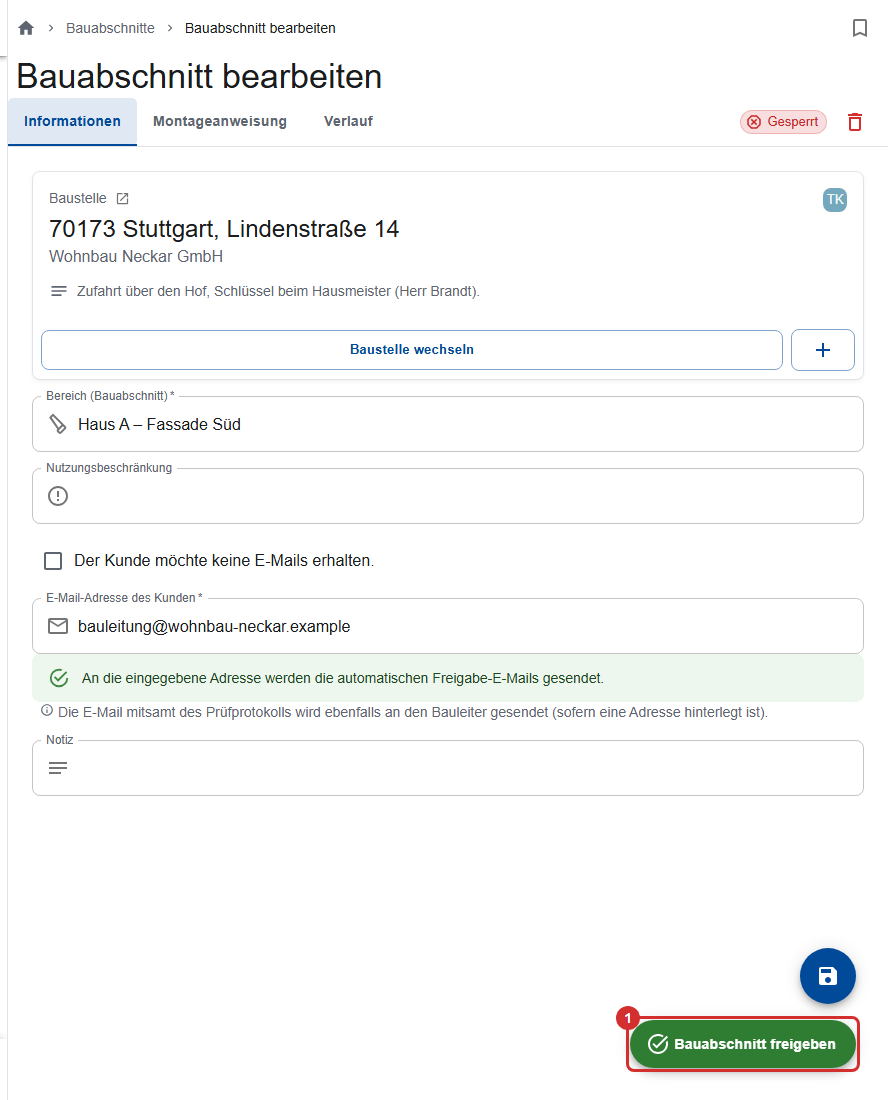
- Save the section. The release uses the saved state, including the customer's email address the report goes to.
- You enter a Restriction of use in the section's Information tab. It later appears on the status page.
- Have a free QR code sign ready (QR codes).
Releasing in the office or as site manager
- Open the section (status Closed) and tap Release scaffold section (①, bottom right).
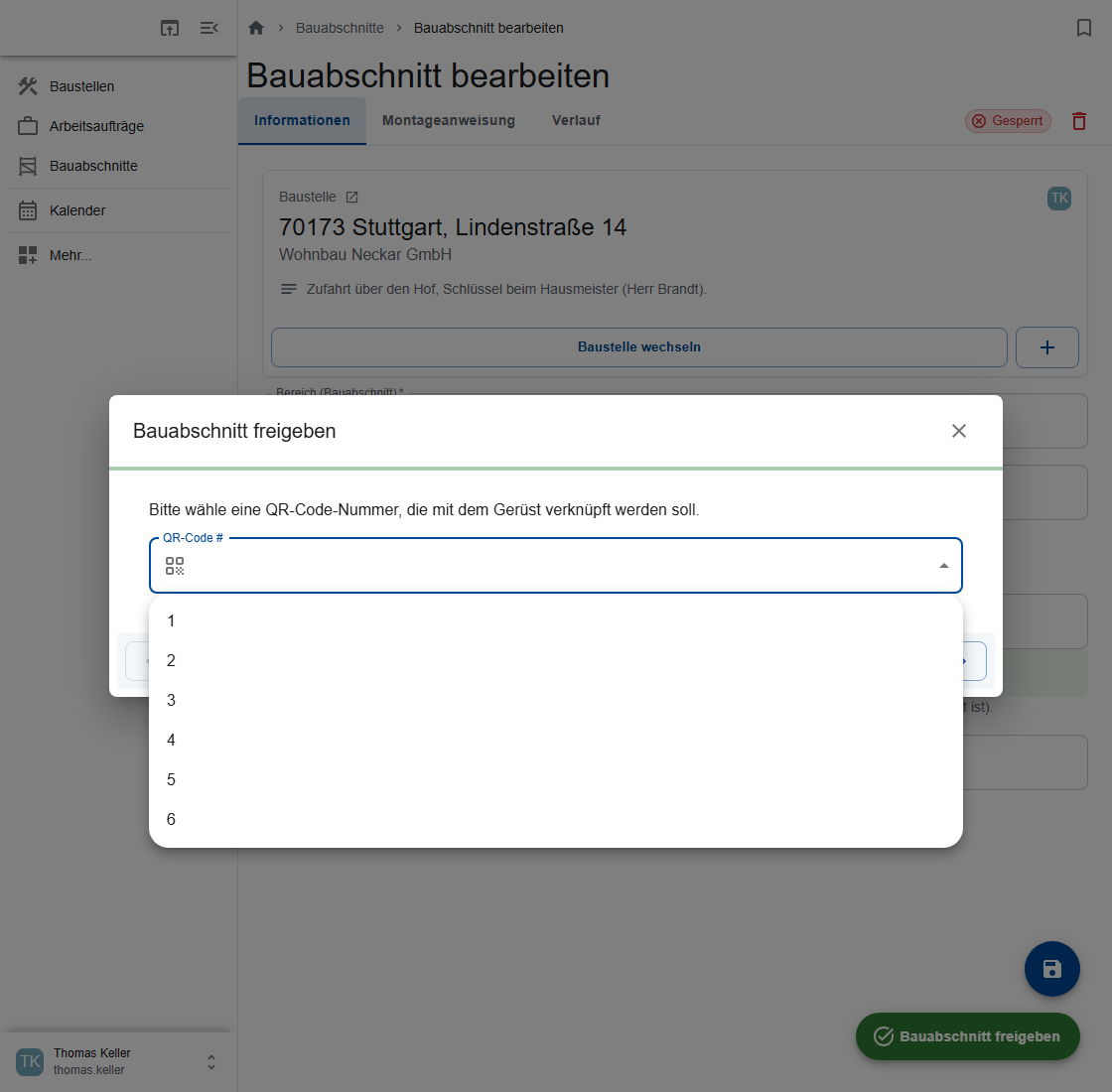
- Choose the QR code: pick the number of the sign from the list (“QR code #”), or scan the sign with a phone or tablet and confirm the number.
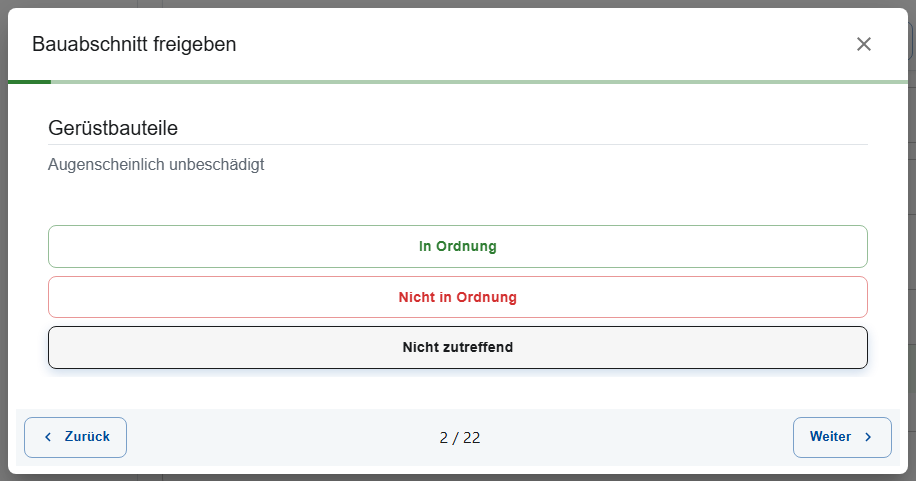
- Checklist: answer every inspection item with OK, Not OK or Not applicable. The app moves on after each answer.
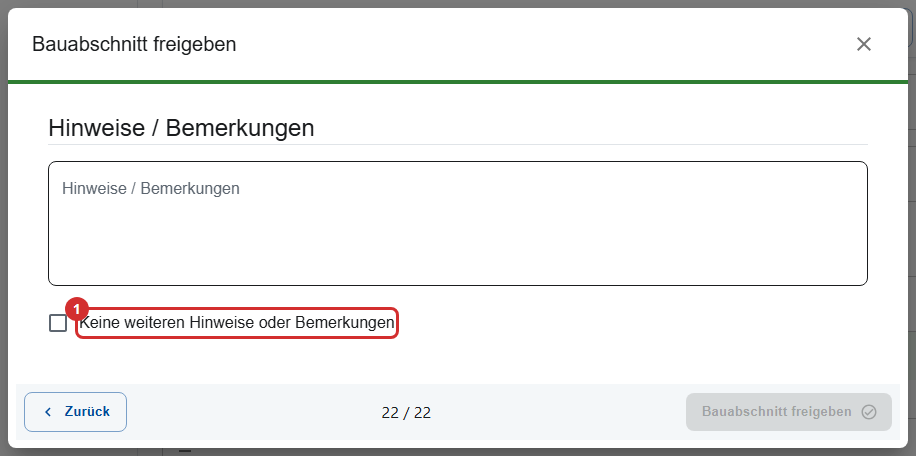
- Notes / Remarks: write something, or set “No further notes or remarks”. Until you do, Release scaffold section stays grey.
- Tap Release scaffold section. The status now shows Approved.
“Not OK” doesn't prevent a release
Check for yourself whether the scaffold may be released with items rated “Not OK”, and describe any restrictions in the notes.
The inspection items
| Area | Inspection items |
|---|---|
| Scaffold components | visibly undamaged |
| Structural stability | load-bearing capacity of the contact surface, base jack extension lengths, bracing/diagonals, longitudinal ledgers at base height, lattice girder bracing, anchoring according to assembly instructions |
| Decking | deck levels fully laid out with deck securing, corner formation at full width, scaffold boards (cross-section, support) |
| Work and operational safety | openings between decks, side protection incl. end protection, wall clearance ≤ 30 cm, access points ≤ 50 m, protective roof |
| Mobile scaffold | traffic safety/lighting, castors, ballast/widenings |
| Marking | scaffold identification at the access points |
| Closure | unfinished areas cordoned off with “No entry” |
Releasing on the construction site
- Open the work order. If the section is closed, it shows “Section is closed.” with Release (①).
- Scan the QR sign on the scaffold. This only works with a phone or tablet; on a PC, the app doesn't release on the construction site.
- Continue as in the office: checklist, notes, Release scaffold section.

“The scanned QR code does not exist in the system.” means the sign belongs to another company, or the code was deleted. Use a different sign.
What happens after the release
- The inspection report is stored as a PDF in the construction site's documents, in the Freigabeprotokoll folder.
- The release email with the PDF and a link to the status page goes to the customer, with a copy to the construction site's site manager. If the customer doesn't want emails or has unsubscribed, it only goes to the site manager.
- The QR code on the scaffold shows everyone the current status (Status page).
If the section's card shows “The PDF could not be generated. Please contact an administrator.”, no email was sent. The section's History tab shows whether an email arrived.
Resending the release email
- Open the History tab of the released section.
- Tap Resend last release e-mail. The last inspection report goes to the currently saved address, for example after a correction.
With “Delivery unknown”, the last email may still have arrived: ask the customer before you choose Send anyway. With “Email being sent”, wait a few minutes.
Closing a scaffold
- Gets released: through the release with checklist
- Gets closed: by hand, when moved to another construction site, when its QR code is used on another scaffold, or after the dismantling
With Close scaffold section you take a scaffold out of use, for example after damage or before a modification. The QR sign stays assigned and shows Scaffold closed; no email goes out. After that, the scaffold needs a new release with the checklist.
A section is closed automatically when you assign it to another construction site, or when its QR code is used for the release of another section.
Closing after the dismantling
When the crew reports a work order whose only task is Disassembly as finished, ScaffConnect
- closes the section and sets its construction state to Dismantled,
- detaches the QR signs from the scaffold (they're free again),
- sends the dismantling notice to the customer and the site manager; the PDF is in the construction site's Abbaumeldung folder.
With “Site not finished”, a partial dismantling or several tasks, the scaffold stays as it is.
The status page behind the QR code
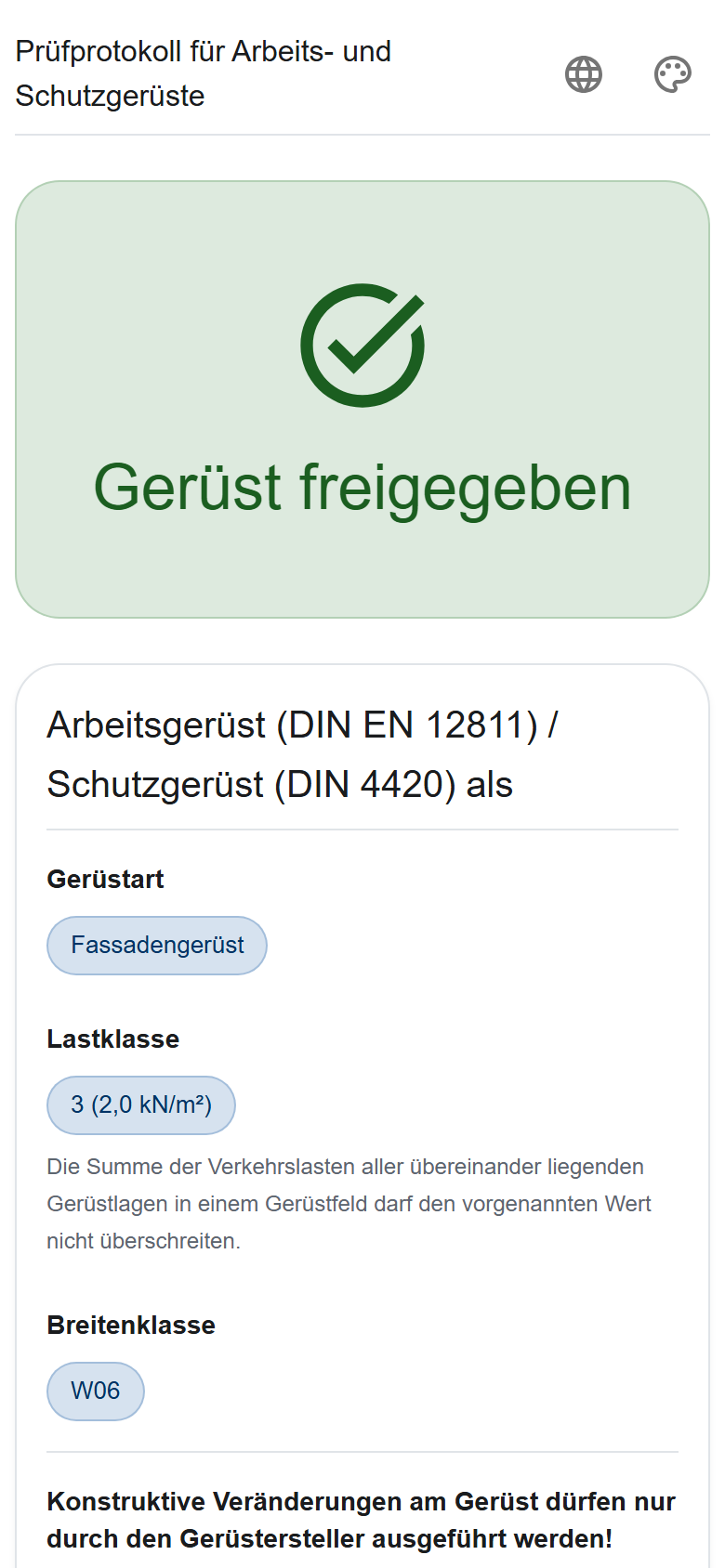
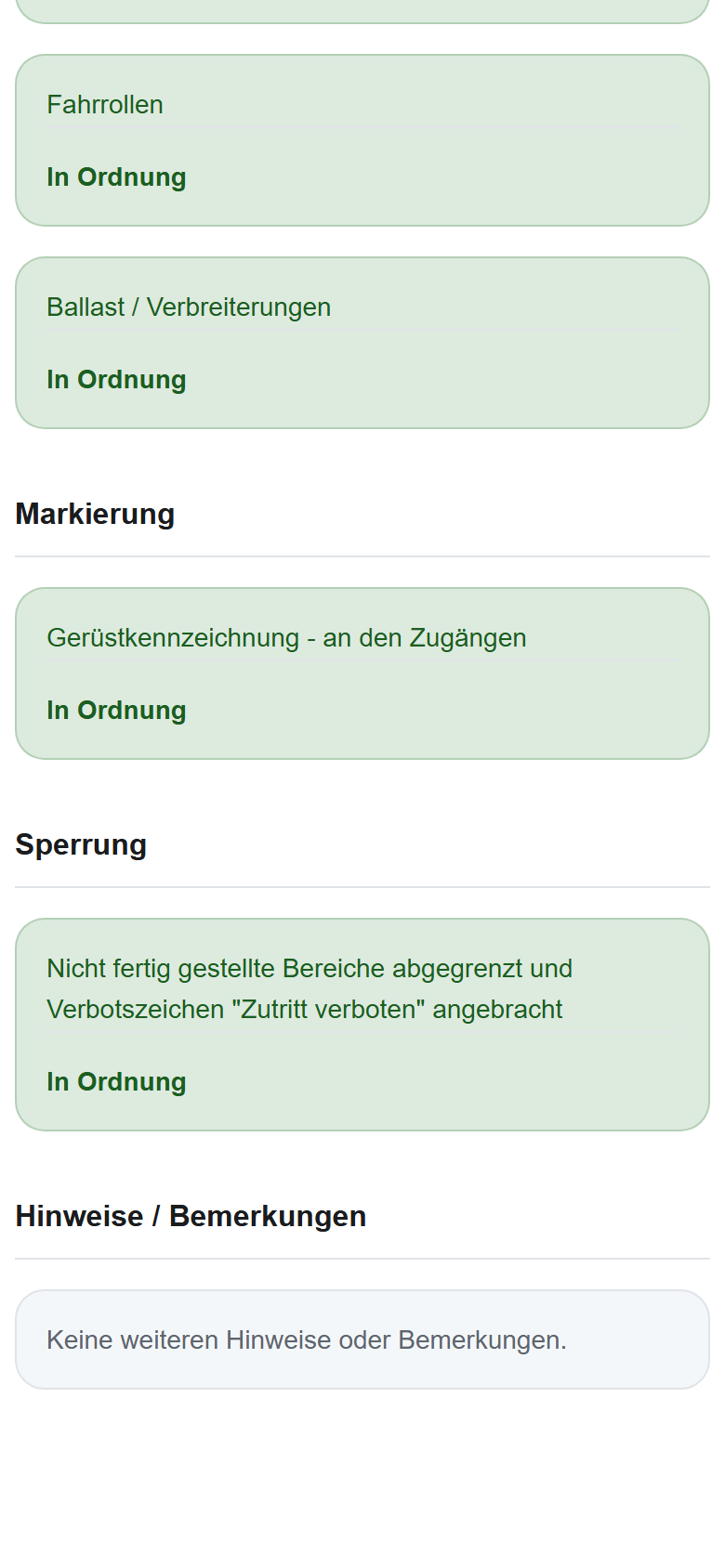
Anyone who scans the QR code on the scaffold sees, without logging in, Scaffold approved or Scaffold closed, the scaffold type, load and width class, the restriction of use, your company and, while the scaffold is released, the approval report. With Change language they can switch the page to Polish or Romanian, for example.
What the status page shows in which case
| Situation | When scanned |
|---|---|
| Released | Scaffold approved with the approval report |
| Closed by hand or moved to another construction site | Scaffold closed |
| After a dismantling report, sign never used, section or QR code deleted | “The QR code could not be found or is currently not in use.” |
| Sign used on another scaffold | the status of the other scaffold |