Planning work orders
A work order is one job of a crew on a construction site: when, where, who, with which vehicle and which task. The crew sees it on the phone as soon as you release it.
The overview
Under Work orders you find the orders with date, construction site, task, vehicle, employees and status. You assign vehicles right in the table.
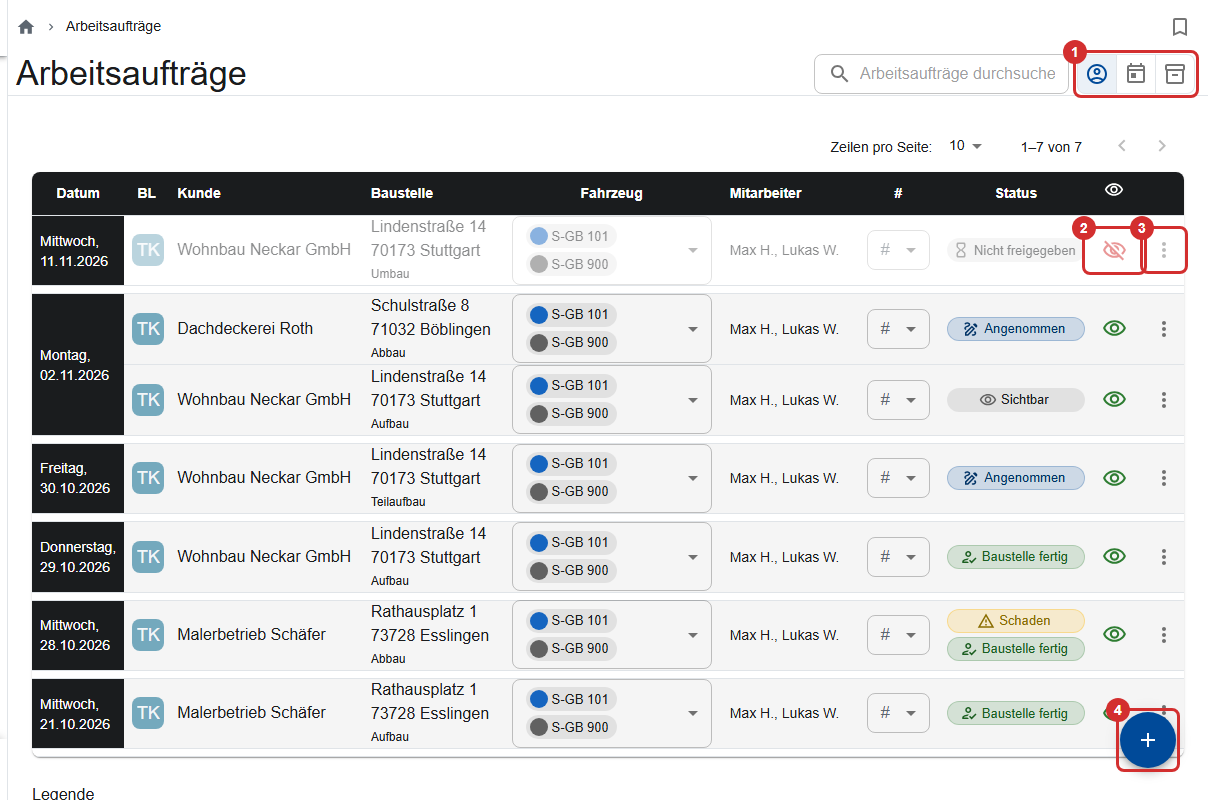
- Next to the search (①): only mine, only upcoming and completed/archived. “only mine” is on by default; if the list is empty, switch it off (Filters).
- Eye (②): release or hide the order.
- Three dots (③): Edit, Deploy or Hide, Archive, Download.
- + (④): new order.
The status
Damage and Remark appear as well when the crew has reported something.
Creating a work order
- Tap + (in the overview or in the construction site's Work Orders tab).
- Select Construction Site (if it's missing, create it with +) and Select scaffold section. If the app asks “No construction section assigned” when you save, choose Add and then save once more, or No, save only.
- Date: tomorrow is preset. For several days, set Multiple days with From and Until. Make sure Until is after From.
- Select employees: Mark at least one as crew leader (column TL, ①) and the driver in column Dr (②).
- Task(s): Assembly, Partial assembly, Modification, Partial disassembly, Disassembly or Other. Optional: Vehicle(s) and a Note for the crew.
- Save.

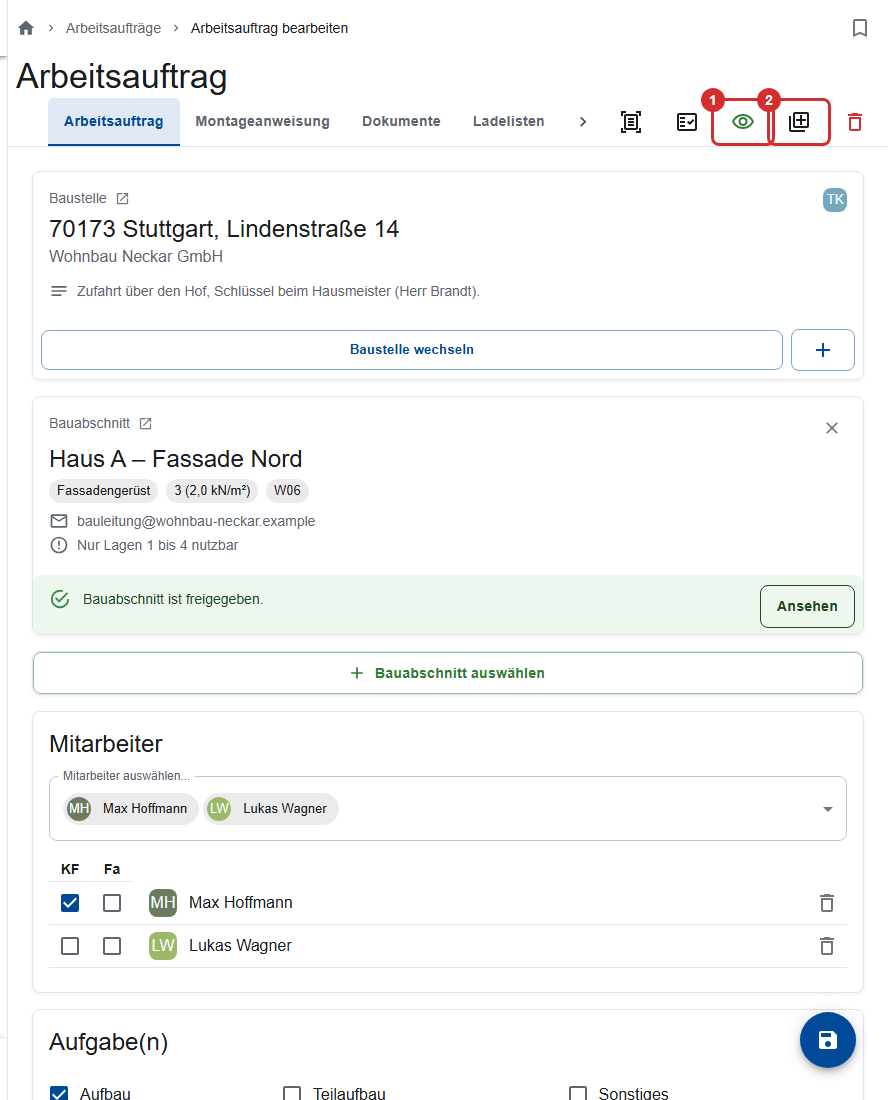
At the top right of the order: Release (①) and Create work order (②) to copy it.
Without a crew leader nobody gets into the order
Without a crew leader nobody can confirm the briefing, and the crew can't open the order. The overview then shows a warning triangle instead of the eye.
The Loading lists, Photos and Report tabs, and attaching documents, are only available after the first save.
Hazard analysis and documents
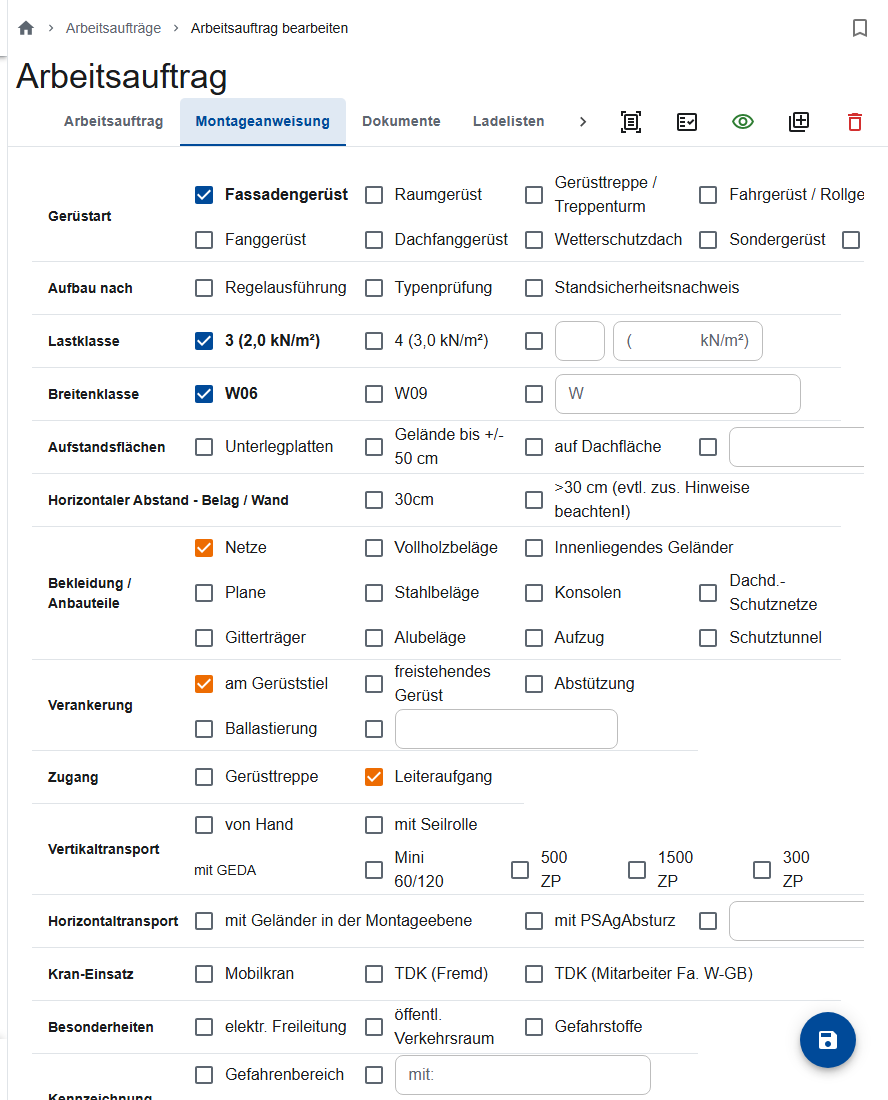
- Assembly instructions tab: the Hazard analysis of the job. If it's empty, the app takes the assembly instructions of the first section. Values that differ from them are shown in a warning color.
- Documents tab: plans, sketches or material lists for the crew. The crew sees only the order's documents, not the construction site's. This is also where you find the pre-filled acceptance report for sites without digital release.
Releasing an order
Tap the eye in the overview, or Release at the top right of the order. The crew sees the order when they reload their list; they don't get a message. The construction site needs a site manager for this.
Withdrawing an order
Hide (eye) takes an order off the crew's phones. Consent, report and status remain.
You can still change an order after the release, the acceptance or the report. The crew isn't notified, and the consent stays valid: tell them about important changes yourself.
Copying an order
For the next job, such as the dismantling after the erection:
- Open the order you want to copy.
- Tap Create work order (copy icon) at the top right. Or, in the construction site's Work Orders tab: “Add a new work order based on the last work order”.
- If the order has documents, answer “Copy files?”.
- Adjust the tasks; otherwise a copy of an erection becomes an erection again. For orders over several days, check the Until date.
- Save.
The date is set to tomorrow. Release, consent, report and photos are not copied.
During and after the job
- Photos tab: the crew's pictures, with a red number for unprocessed ones. You can Mark as done, download or delete them. They're also stored in the construction site's documents.
- Report tab: the construction site report, reported damage and remarks, and when the crew leader consented to the briefing.
- Work order (PDF): the order with hazard analysis and consents. Before the consent it's a draft; the final version shows the state at the time of the consent.
- Protocol (PDF): available after the report.
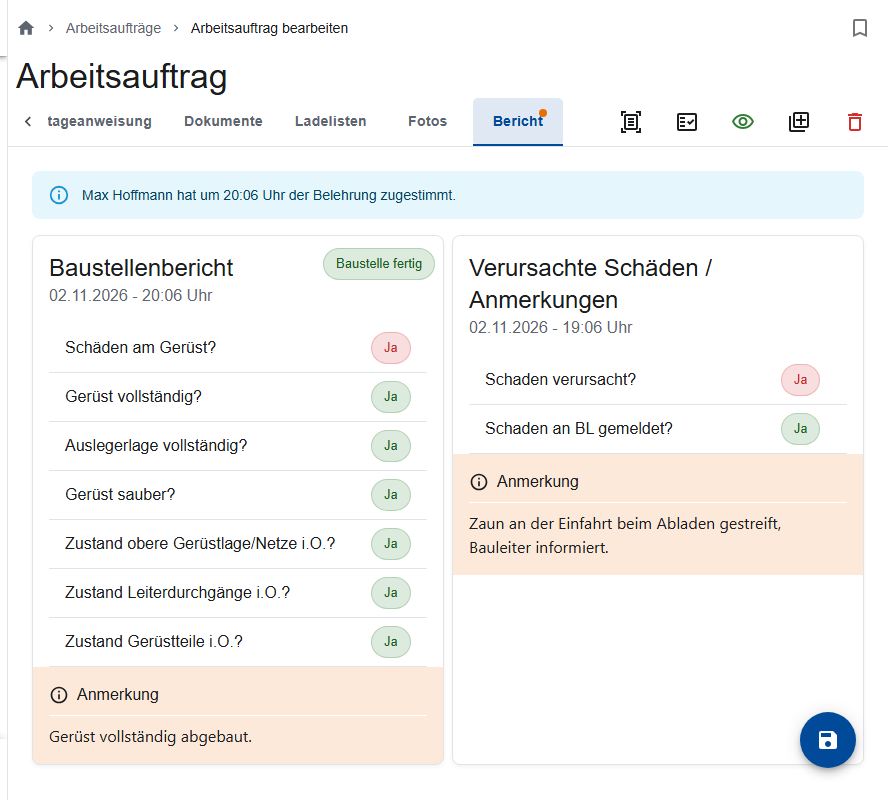
What the crew reports is described under My work orders.
Archiving and deleting
- Archive (row menu) sets the order to Completed without asking. It disappears from the list and from the phones. This can't be undone.
- Download (row menu) offers the work order, the protocol or both as a ZIP. If you then answer “Close work order?” with Yes, the order is archived.
- Delete only exists in the order itself. An order with a report can't be deleted (“A finished work order cannot be deleted.”). The order's documents are lost; the photos remain in the construction site's documents.
Who may do what?
All site managers and the office may create, change, release, archive and delete work orders, not only the site manager of the construction site. The crew only sees released orders they're assigned to; only a crew leader confirms the briefing.