Loading lists
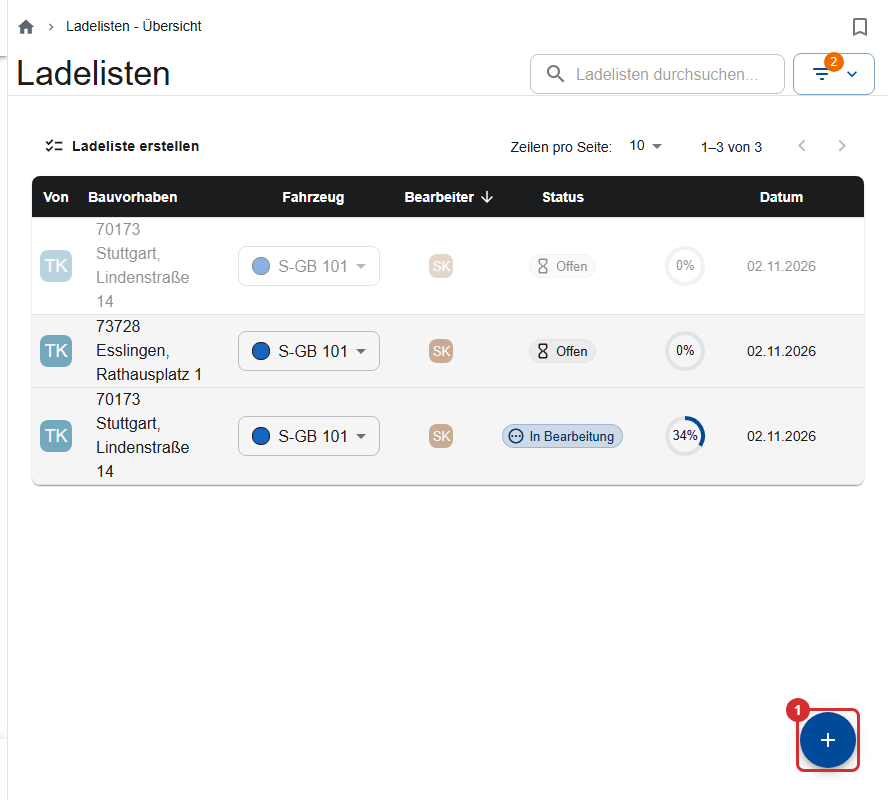
A loading list tells the warehouse which material to load for a construction site. On a phone, you find loading lists in the Lists area.
Finding a loading list
By default, you only see Assigned to me (lists you created) with the Status (Warehouse) “Open” and “Being loaded”. If a list is missing, turn off “Assigned to me”. “Recently closed” shows lists that were fully loaded in the last 24 hours.
Creating a loading list
- Tap + or Create loading list. On a computer, you can import a file (an Excel material list or Scaffmax), continue an unsaved draft, or choose Create without template.
- Choose the Construction Site. Crew members and the warehouse enter a free-text Construction project instead.
- Optional (site managers and office): Warehouse worker, Vehicle and Share with other users (to view, and optionally to edit or load).
- Add the Parts with their quantities, and a note if you like.
- Tap Save.
Until you save, the app keeps every change as a draft on the device.
Importing a file
You download your company's Excel template on the Loading Lists tab of a construction site with Download Excel Template. This only works if the site has a customer.
If you import a file into a list that already has content on a computer (the round file button in the editor), the app asks what should happen. Nothing is saved until you tap Save.
Add, Update, Replace
| Option | Effect |
|---|---|
| Add (default) | New parts are added; for parts already in the list, the quantities add up |
| Update | Only parts already in the list get the quantity from the file |
| Replace | All parts of the list are replaced by those in the file |
Missing parts
If parts that usually go together are missing when you save (for example, toe boards with decks), the app names them. Go Back to the list or tap Save anyway. Check list at the top of the editor shows all gaps. The office decides which parts go together (part relations).
Making a list visible to the warehouse
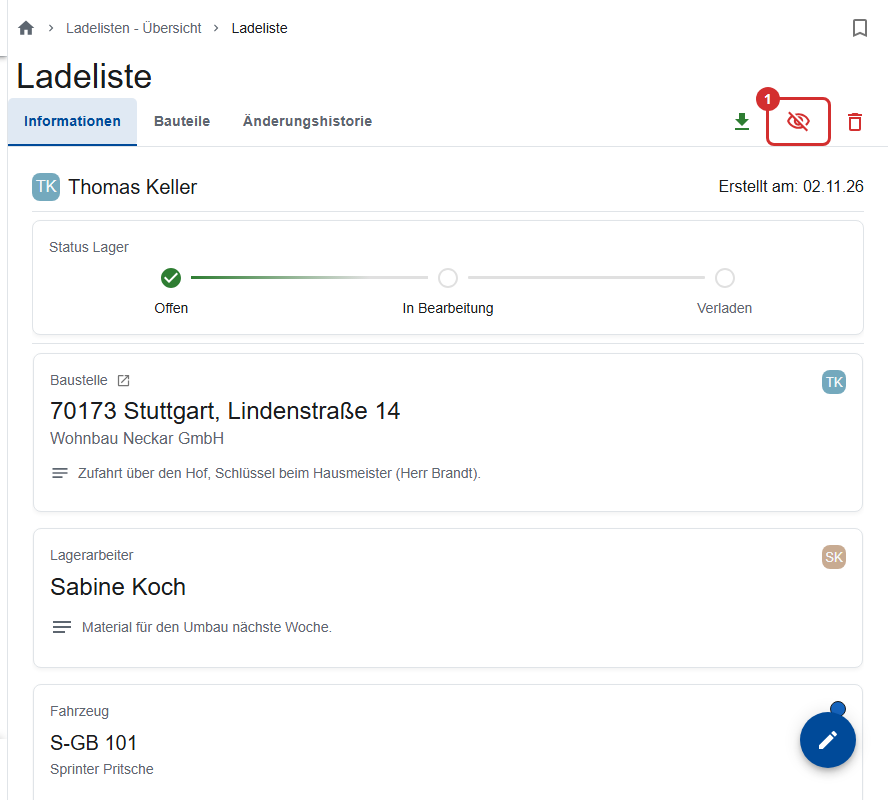
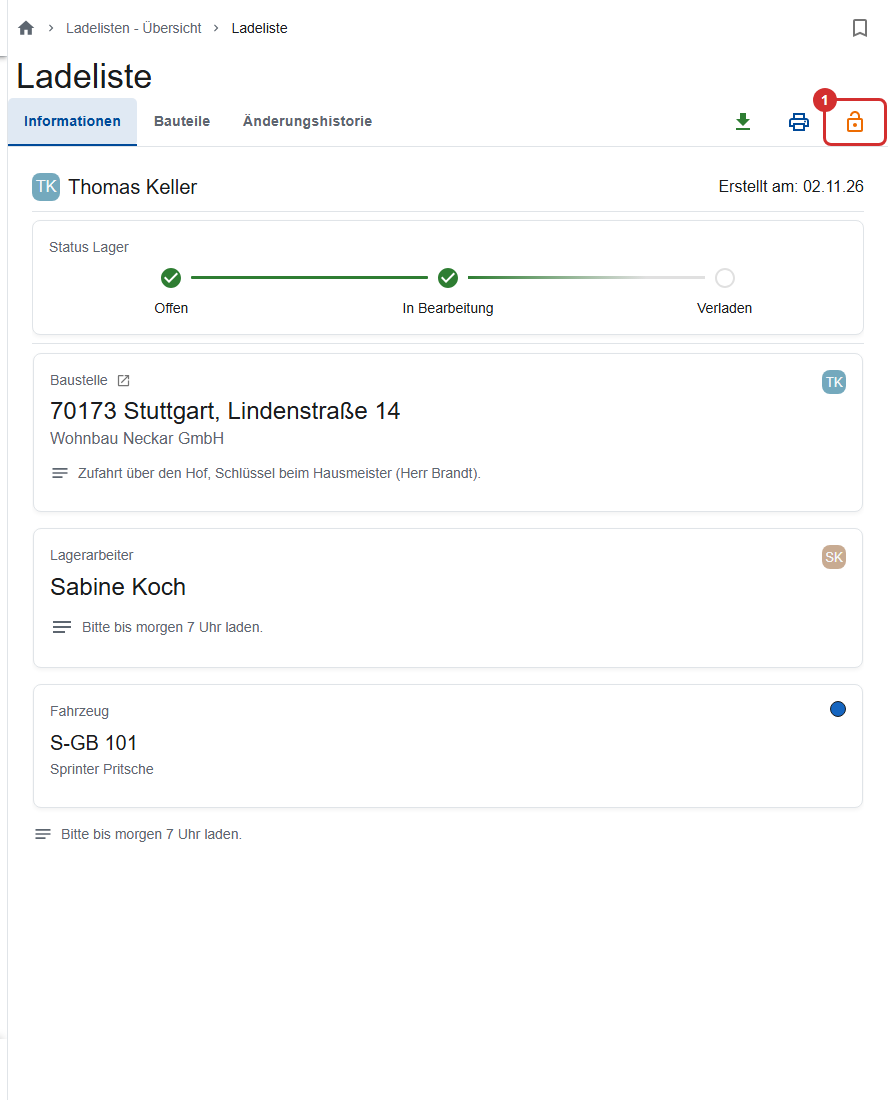
Every new loading list is invisible to the warehouse, even with a warehouse worker entered. Open the saved list and tap Release for the warehouse (①). Only site managers and the office can do this; if you created the list yourself, ask the office.
The crew also sees the visible lists of their site in the work order, on the Loading lists tab.
Loading (warehouse)
- Open the loading list. On a phone, tap Load loading list.
- Tap the forklift icon on each line item, or scan the part's code.
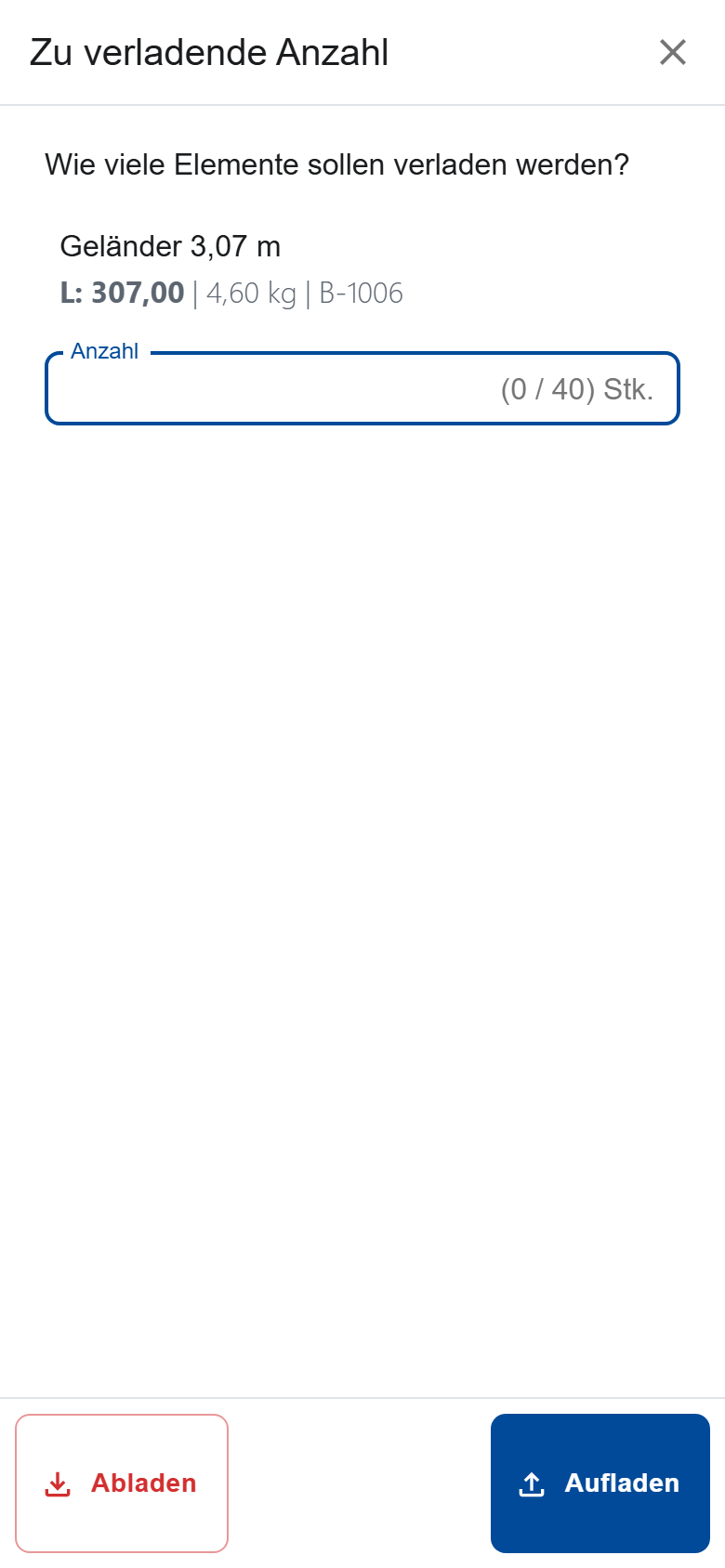
- Enter the quantity and tap Load. If you loaded too much, take it back with Unload.
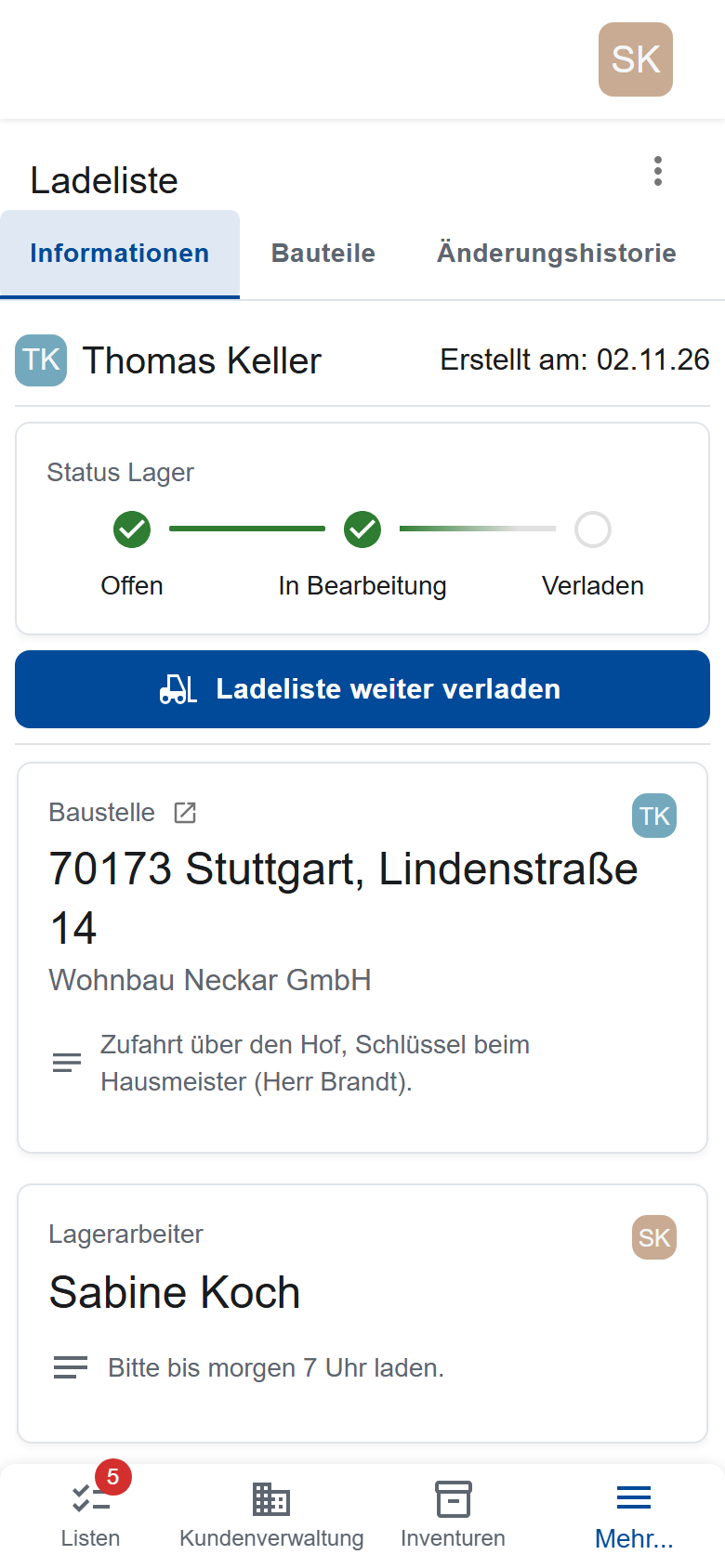
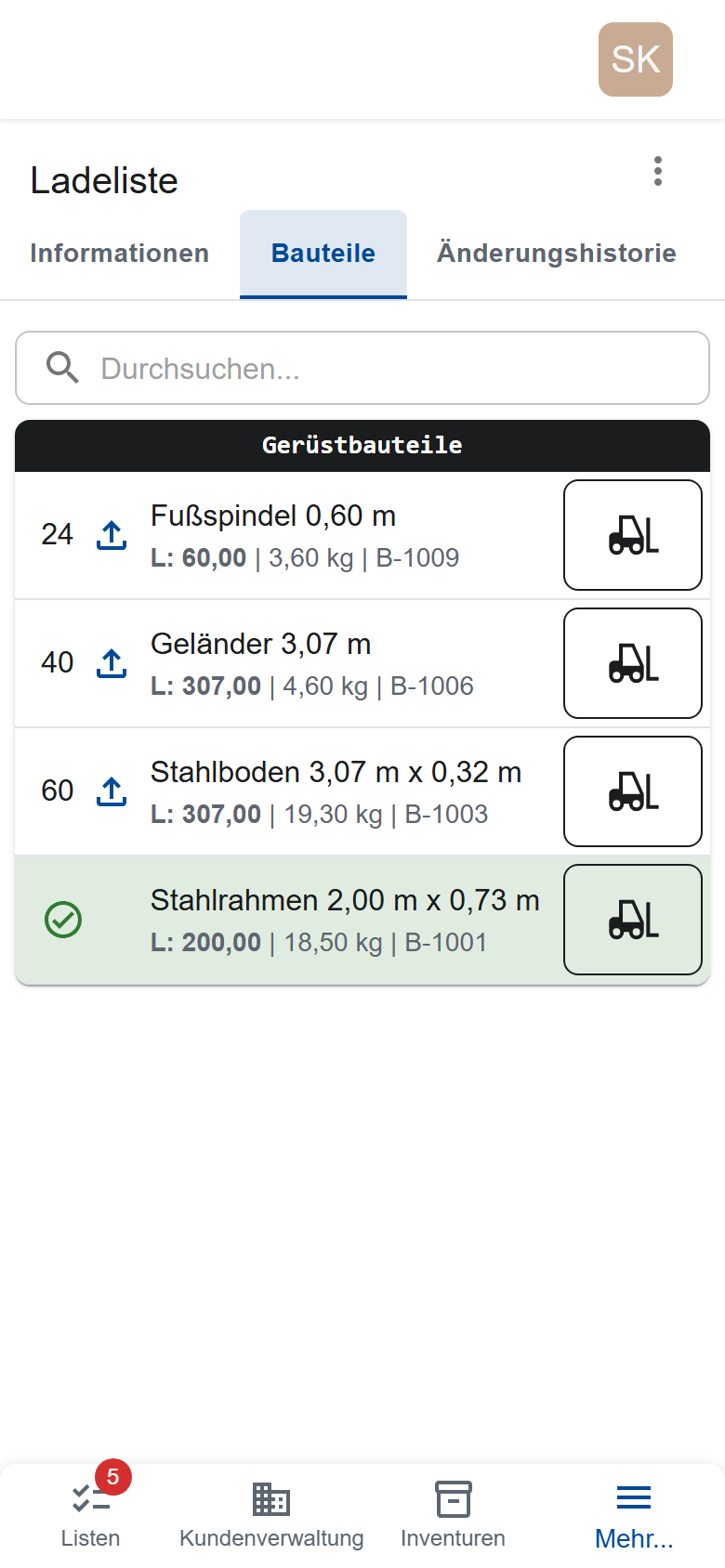
A list is only Loaded when every line item has exactly its quantity. If the office changes the list while you're loading, the changed line items are marked. A removed line item that was already loaded stays in the list until you unload it to 0.
Locking
With Lock at the top of the loading list, the warehouse protects it: while it's locked, nobody can edit or load it, not even the office. Only the warehouse can Unlock it. A fully loaded list doesn't lock itself.
Printing, downloading, deleting
- Print (warehouse) and Download (everyone) give you the list as a PDF.
- Delete (site managers and office) is permanent: the list also disappears from the construction site and the work orders.
Who sees and does what?
| Who | Sees | Can |
|---|---|---|
| Site managers and office | all loading lists | create with a site, make visible, share, delete |
| Warehouse | their own and visible ones | load, lock, unlock, print |
| Other employees | their own; visible ones if they are entered as the warehouse worker or the list is shared with them | create with a free-text construction project, edit their own |
You can edit a list if you created it, if you're in the office, or if it was shared with you with edit rights.