Calendar, vacation, todos, orders
What else the app offers you besides orders and times.
Calendar
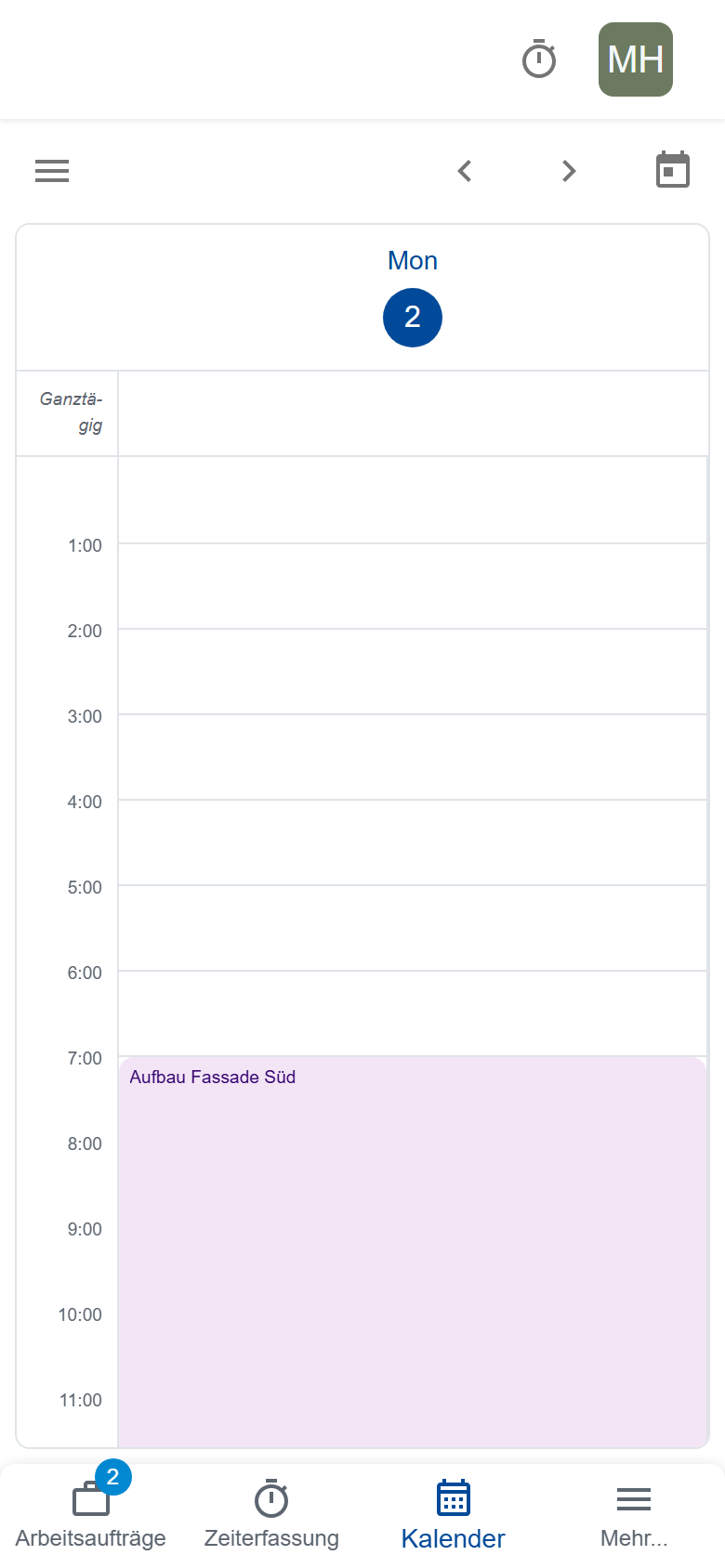
The Calendar shows your company's appointments. Use the arrows to page through it, and choose day, week or month at the top right. Only the office can create and change appointments.
Requesting vacation
- Open your Profile (user menu → Profile), tab Vacation.
- Tap + and choose Single day or Multiple days.
- Choose the date, or the Start date and End date.
- Tap Submit request.
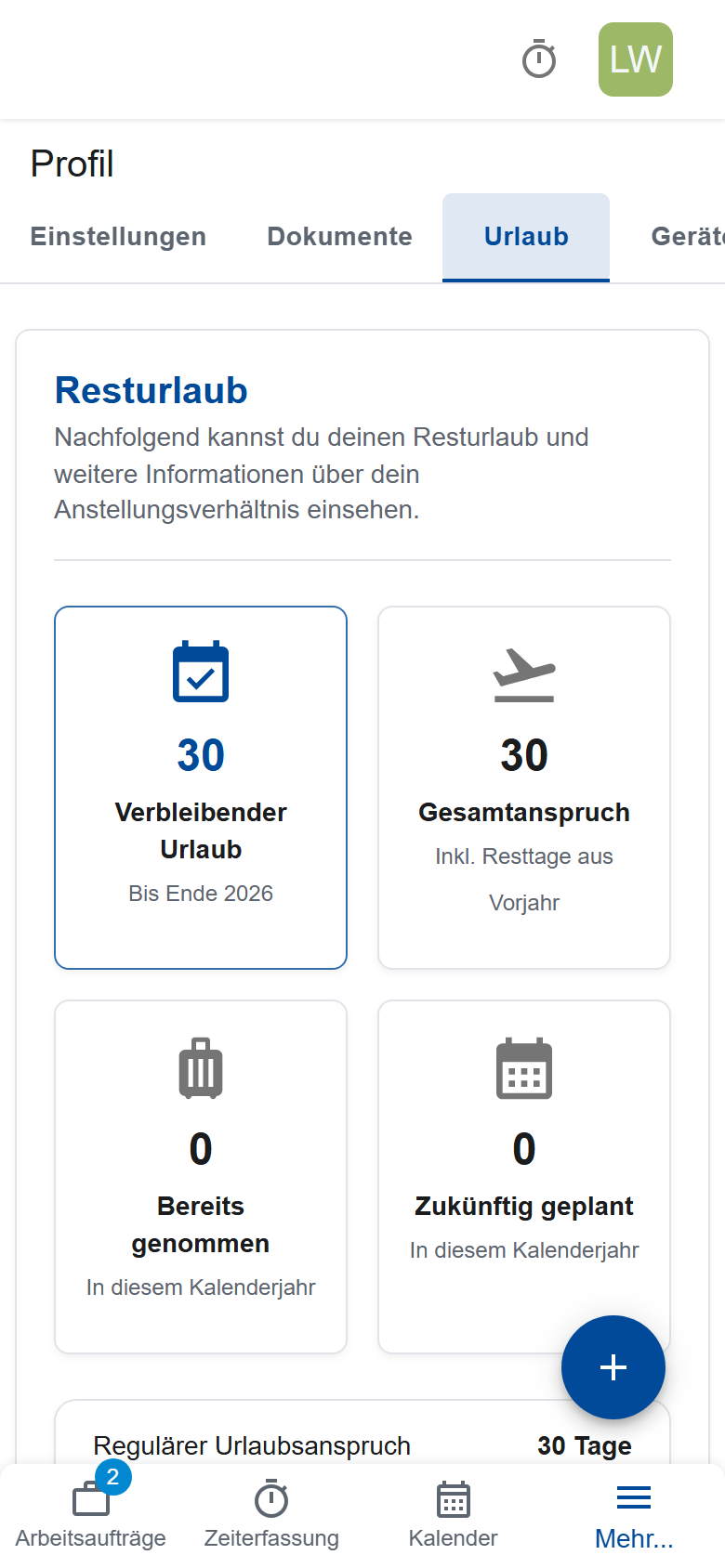
The request stays Pending until the office approves or denies it; the reason then appears under “Feedback:”. You can't change a request: delete it while it isn't approved, and submit a new one.
Remaining vacation only counts vacation once it's entered in time tracking. If it's still missing there after the approval, ask the office.
Todos
Under Todos you keep your task list:
- Type in the task.
- Tap Add.
- Tick it off when it's done.
Prioritize important tasks. Tasks that a site manager or the office adds for you show “by …”; you can tick them off, but not change them.
Orders
If you need gloves, tools or work clothes:
- Open Orders.
- Under New Order (“What do you need?”), write what you need and send the order.
It stays Open until a site manager or the office completes it or denies it with a reason. While it's open, you can change or delete it.
Announcements
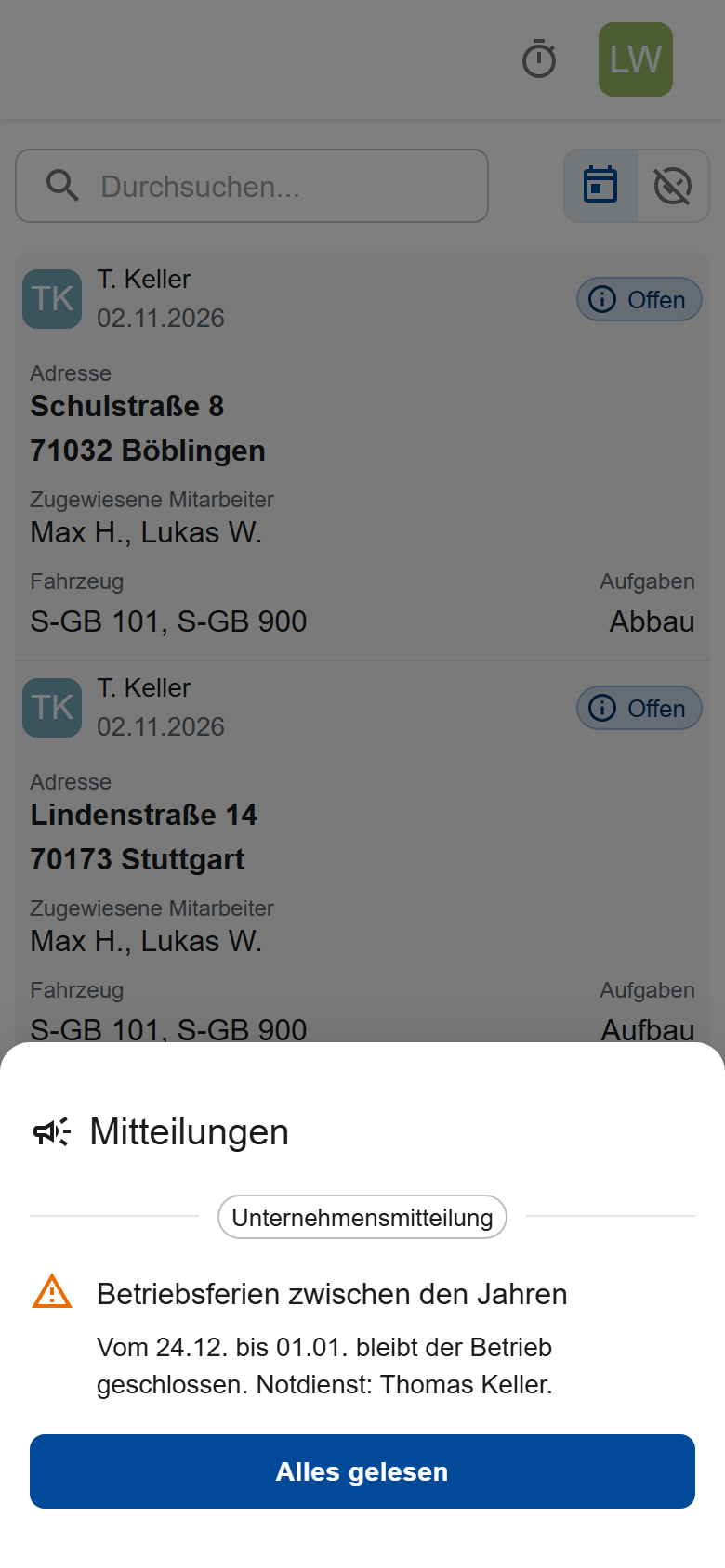
New announcements from your company appear in the Announcements window after the app starts. Close it with Mark all as read; if an announcement asks for a read confirmation, that is your confirmation. You find all announcements under More… → Announcements.
Birthdays
When a colleague has a birthday, a cake icon appears at the top. Mark as read hides it.