Setting up the company
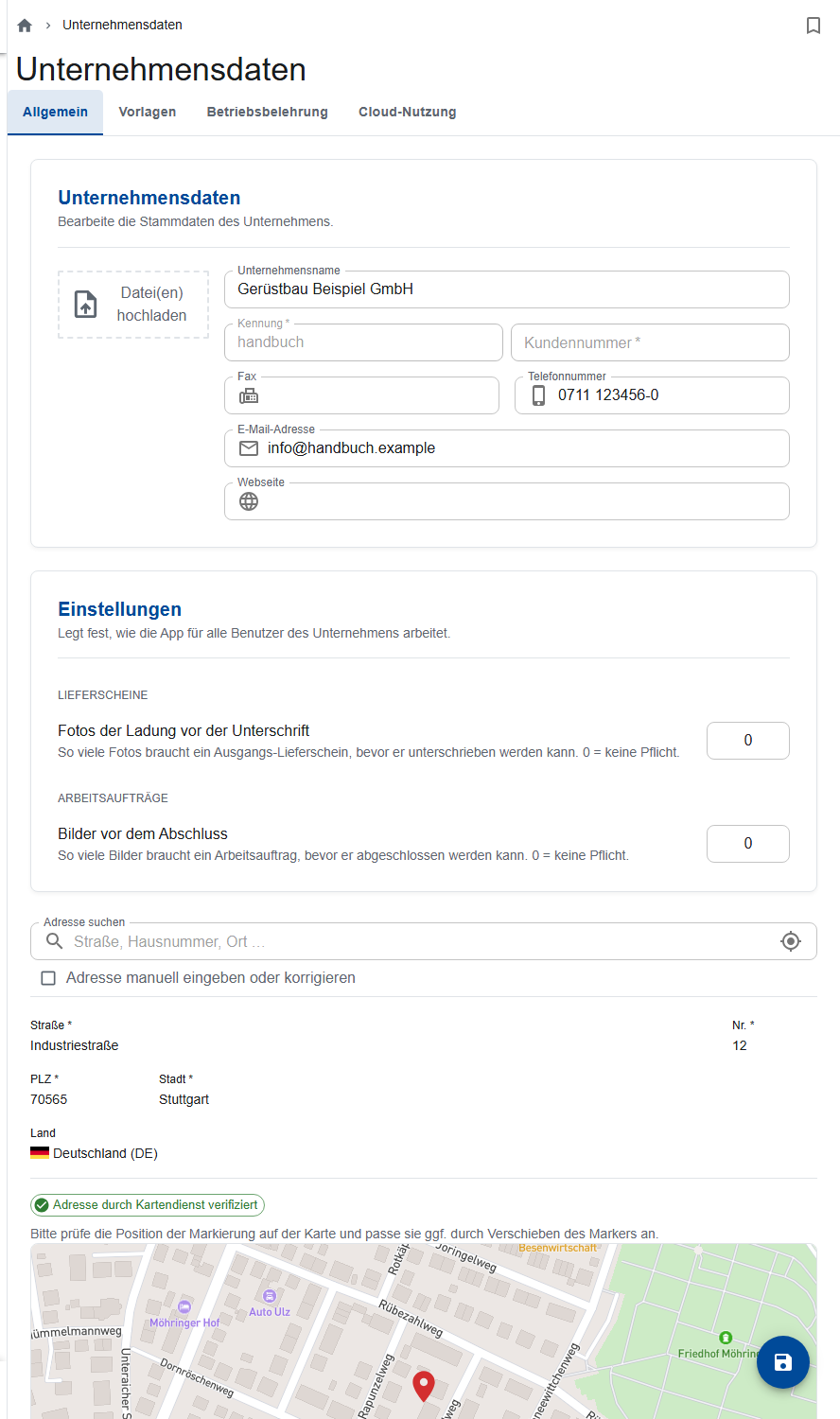
Under More… → Company data, admins maintain the data shown in the app and on the PDFs. The page has the tabs General, Templates, Safety Instructions and Cloud Usage.
Don't forget to save
You save changes in General and Templates with the round Save button. The Email Address must be filled in for that.
Entering the company data
- In the General tab, enter name, address, phone, email and website. They appear under More…, in the release emails and on the status page of the QR codes.
- Upload the Company Logo. It appears in the app and on the scaffold release signs.
- Save.
You can only view the Identifier. It's the company ID your employees log in with.
Settings for all users
| Setting | Effect |
|---|---|
| Images before completion | The number of photos the crew needs before it can complete an order. 4 by default; 0 = no minimum. |
| Images of the load before signing | The number of photos an outgoing delivery note needs before it can be signed. 0 = no minimum. |
Letterhead and templates
In the Templates tab:
- Upload your letterhead as a PDF. It appears on the app's PDFs, such as delivery notes, work orders and reports.
- Enter the margins and check them with Refresh preview.
- Optional: upload an Excel Template for loading lists. Site managers download it in the Loading Lists tab of a construction site.
- Optional: set the Default Folder Structure. It only applies to construction sites, work orders and other entries you create after that.
- Save.
Setting up the safety briefing
An instruction profile ("General", "Forklift drivers") applies across all years; its documents each belong to one year. The app saves changes right away.
- Tap Add Instruction Profile and enter a profile name.
- Choose the Year and upload the documents (PDF).
- Choose the employees under Assigned Employees.
- Switch on Require approval for this profile. It's off by default, and then nobody is asked.
The employees sign the next time they log in (Signing the safety briefing), and again when you upload or replace a document, assign them to a profile, or a new year with documents begins. Copy to Year copies the documents into the next year.
Cloud usage
Shows how much storage your company's documents and photos take up.
Plettac consignment warehouse
If your company is also set up for a Plettac consignment warehouse, you open the Plettac app via Plettac consignment warehouse or Manage Plettac App. You enter the password there yourself; it can differ from your ScaffConnect password.