My work orders
Your job on the construction site: where you're going, what there is to do, and what you report at the end.
Finding an order
- Tap Work orders at the bottom. You see your released orders.
- For another day, switch off only today's.
- Pull the list down to reload it.
At the bottom, pull up the Preview of the next working day.
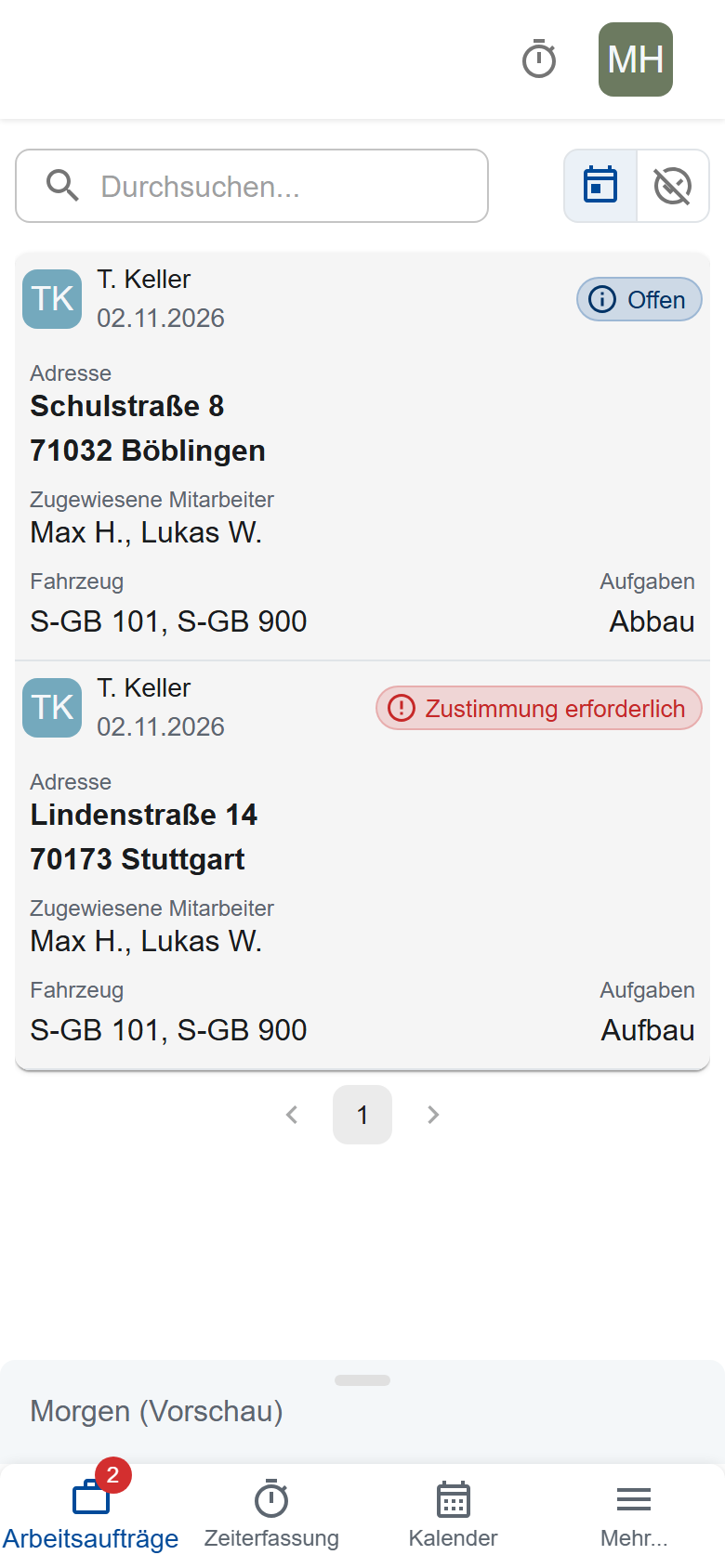
| Status | Meaning |
|---|---|
| Consent required | The crew leader hasn't confirmed the briefing yet. |
| Open | Briefing confirmed, the report is still missing. |
| Completed | The construction site report has been submitted. |
Confirming the briefing
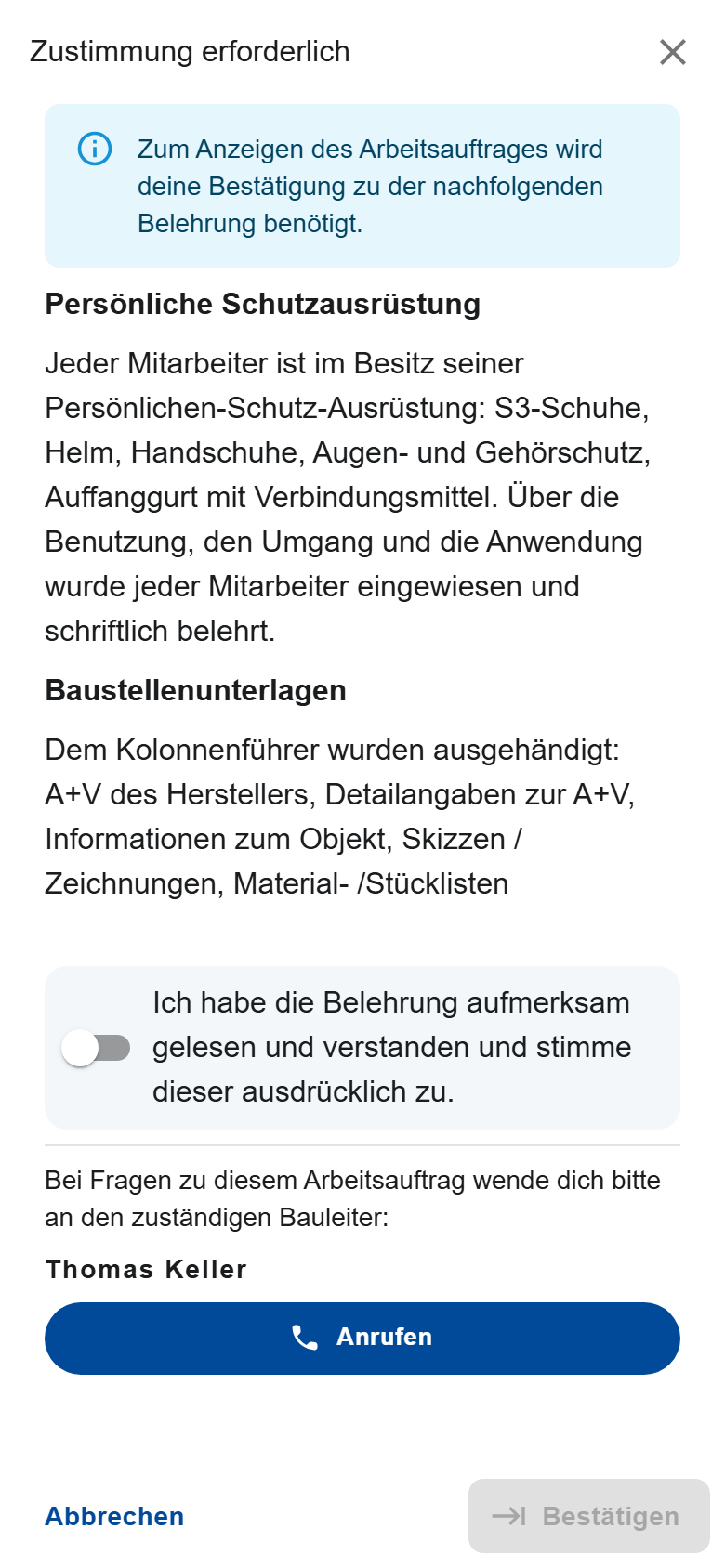
The crew can only open the order once the crew leader has confirmed the briefing.
- Open the order.
- Read the briefing.
- Switch on “I have carefully read and understood the briefing …”.
- Tap Confirm.
If you have questions, or if no crew leader is entered, call the site manager with Call. For an order that runs over several days, you confirm only once.
Viewing the order
- Construction site: address (tap it to open the map), the site manager's note, vehicle, section and crew (TL = crew leader, Dr = driver).
- Assembly instructions: the tasks and the hazard analysis.
- Documents, Loading lists, Images: if there are any.
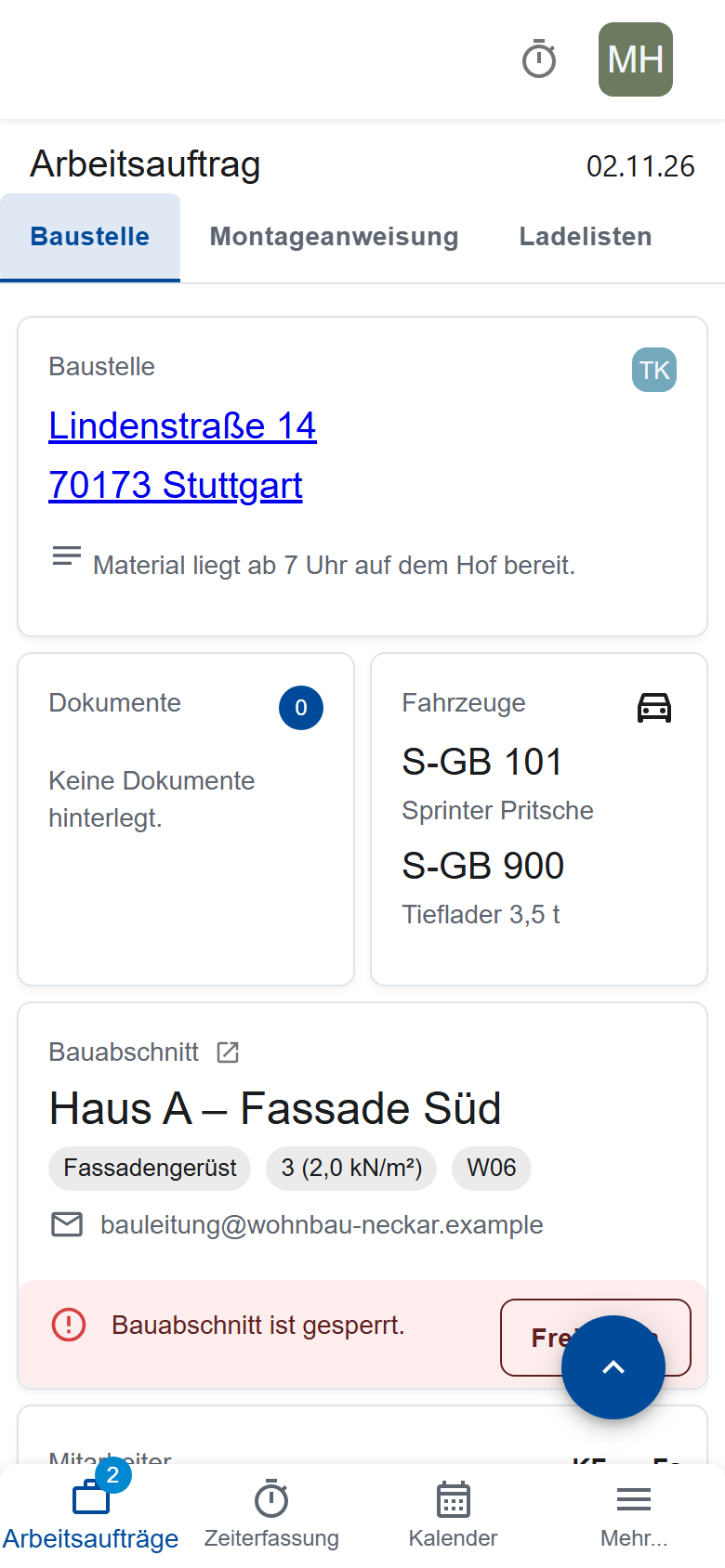
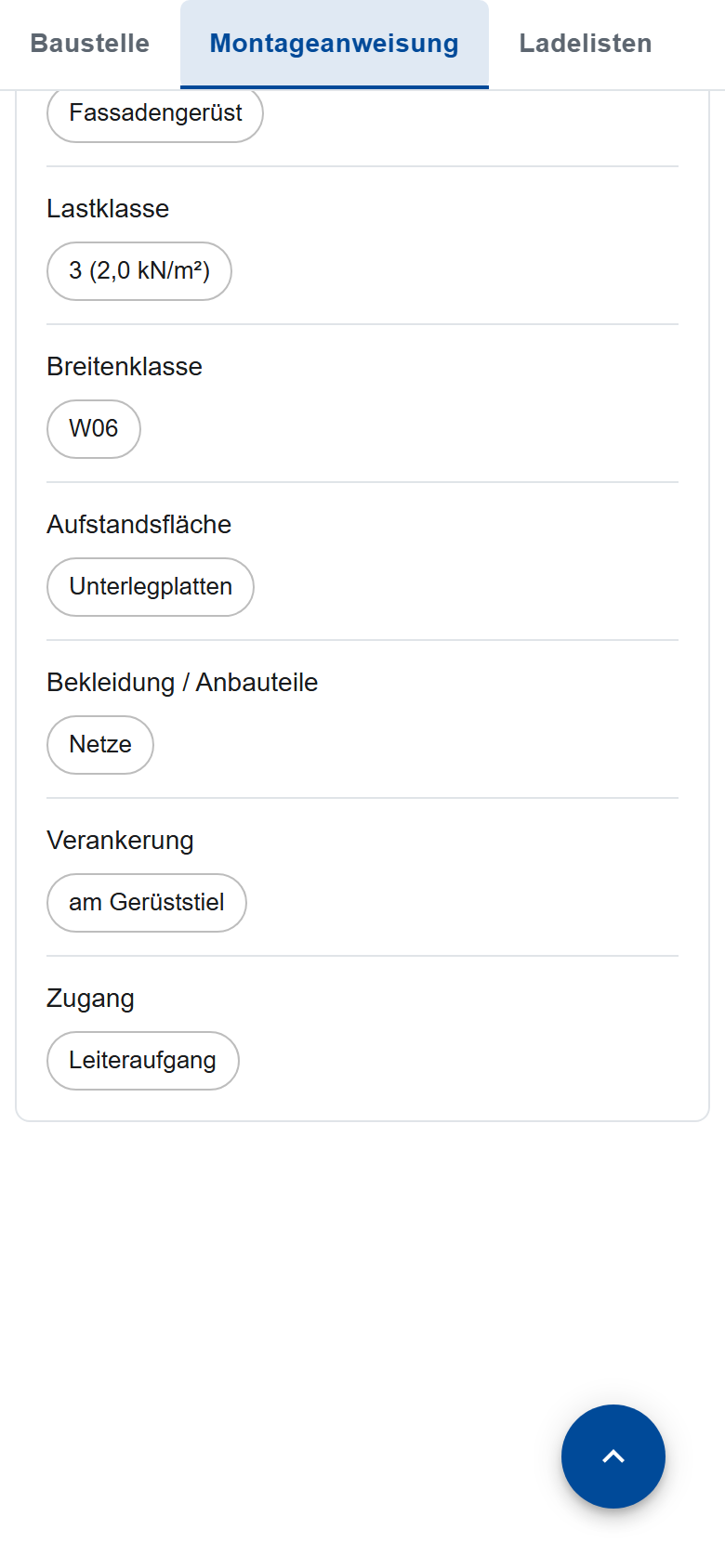
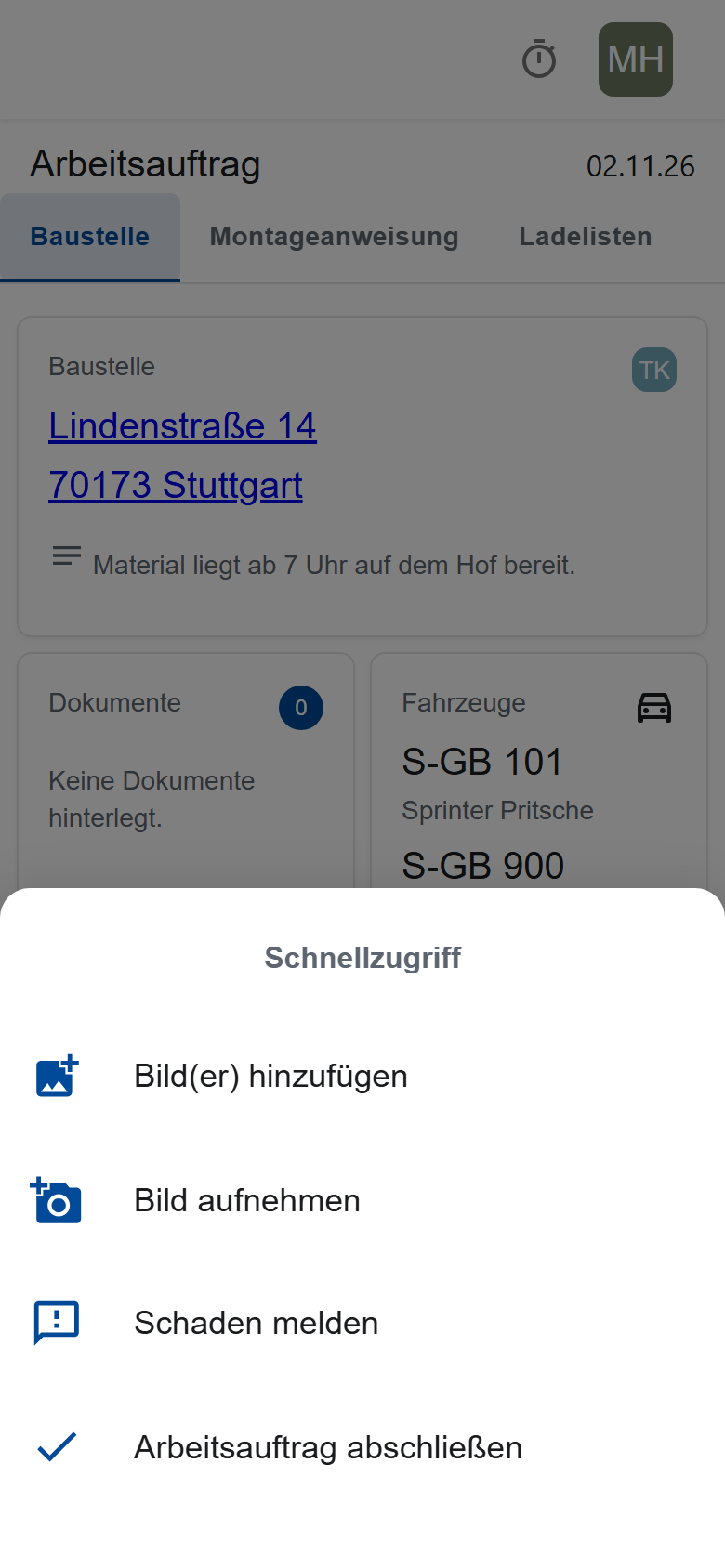
You reach photos, damage and the report through the round button at the bottom right, Quick access.
Uploading photos
- Tap the round button at the bottom right.
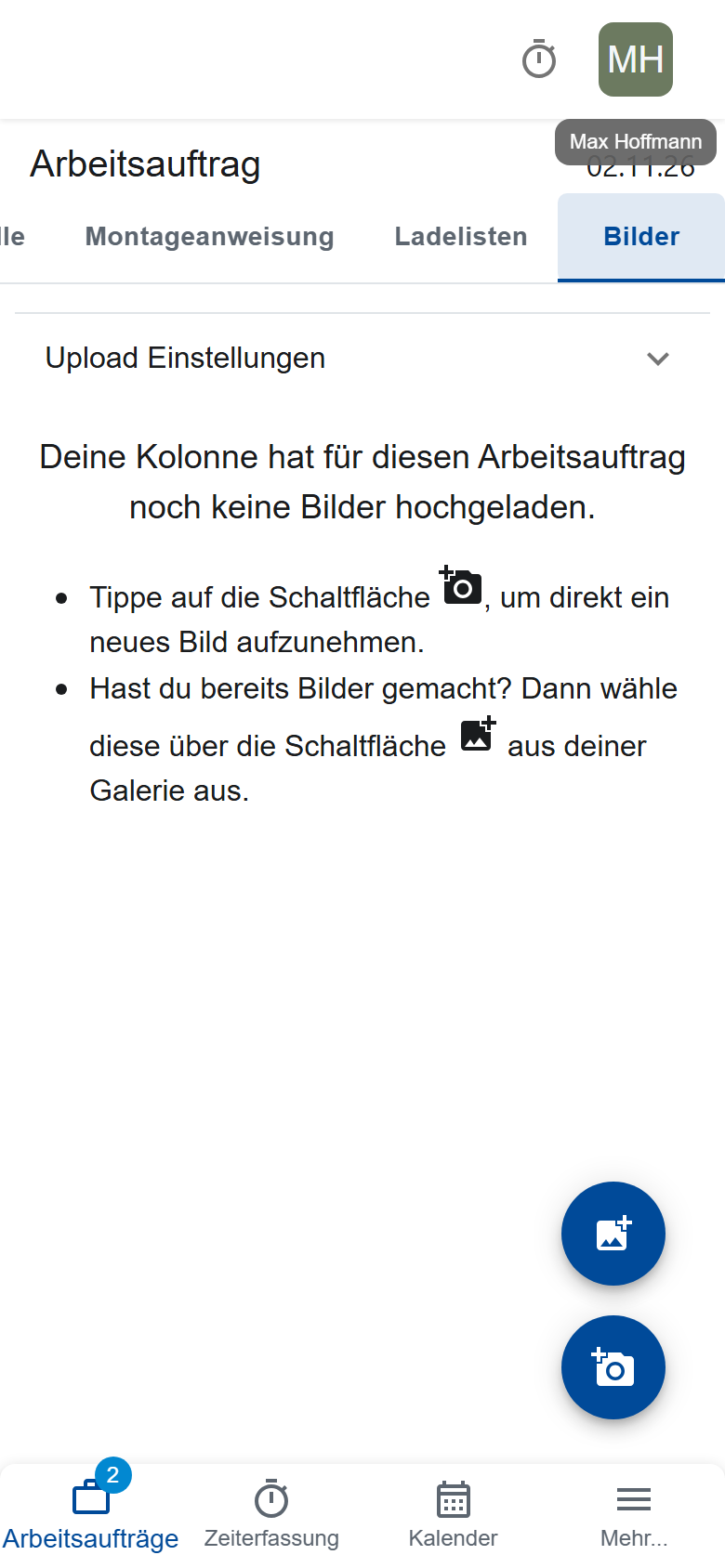
- Choose Take photo or Add image(s) (from the gallery).
Usually the app asks for 4 photos before you can complete the order; if some are missing, it shows “Images required”. To upload in full resolution, switch on Upload images in HD in the Images tab. Without a network, the app uploads the photos later; don't log out until then (Working offline).
Reporting damage
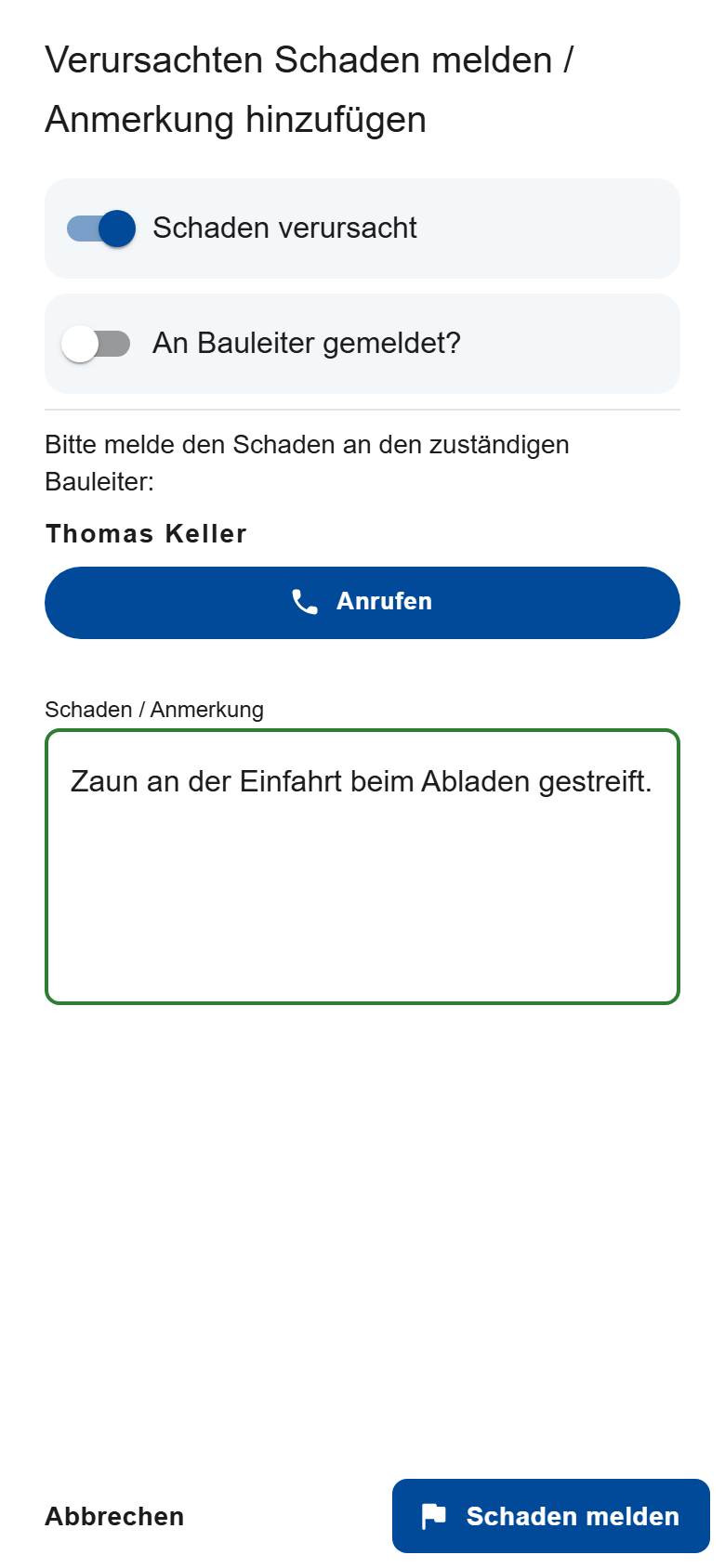
- Quick access → Report damage.
- Switch on Damage caused if it's damage; otherwise it stays a remark.
- Describe what happened.
- If you haven't reached the site manager yet, use Call.
- Tap Report damage.
There is one report per order. If you report again, you replace the old one, so put everything in it.
Submitting the report
Anyone in the crew can submit the report; usually the crew leader does.
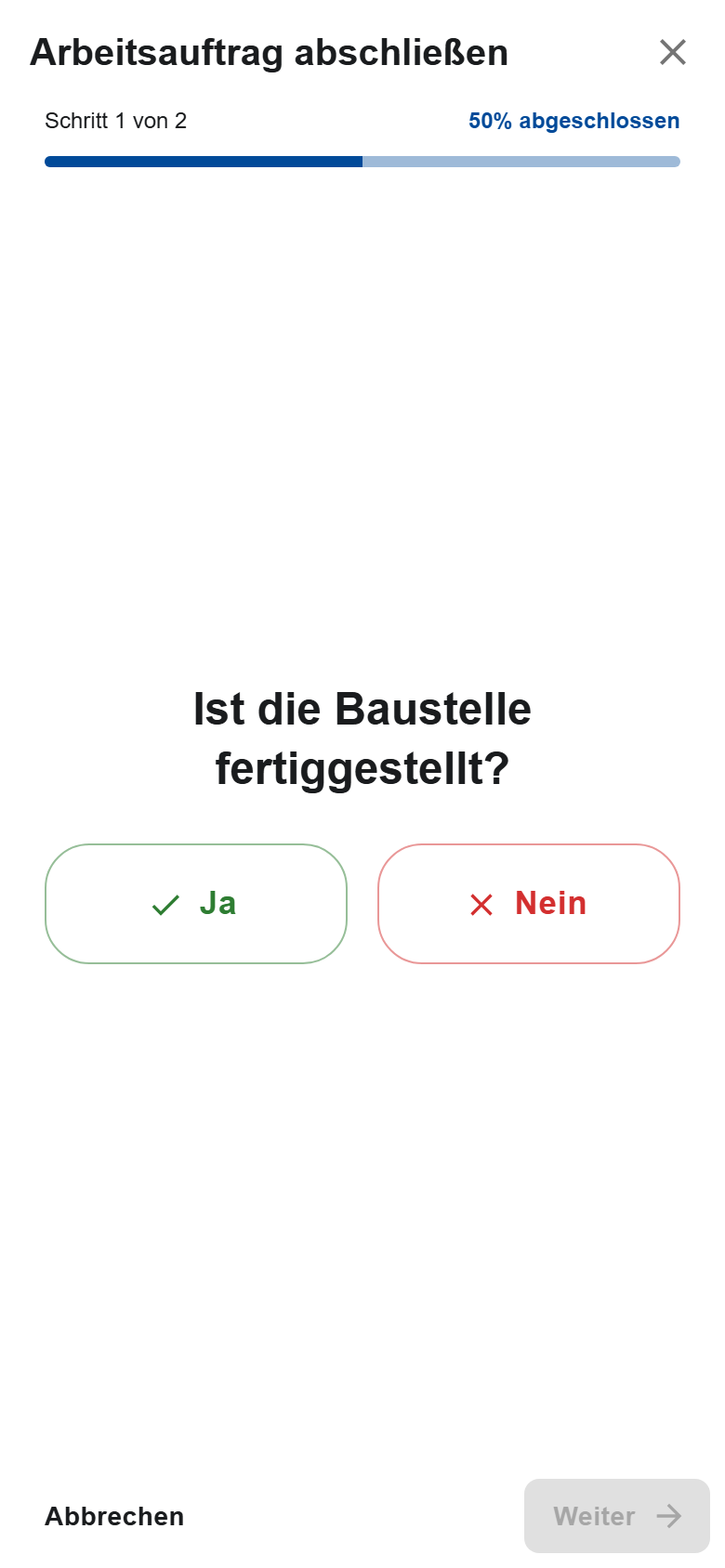
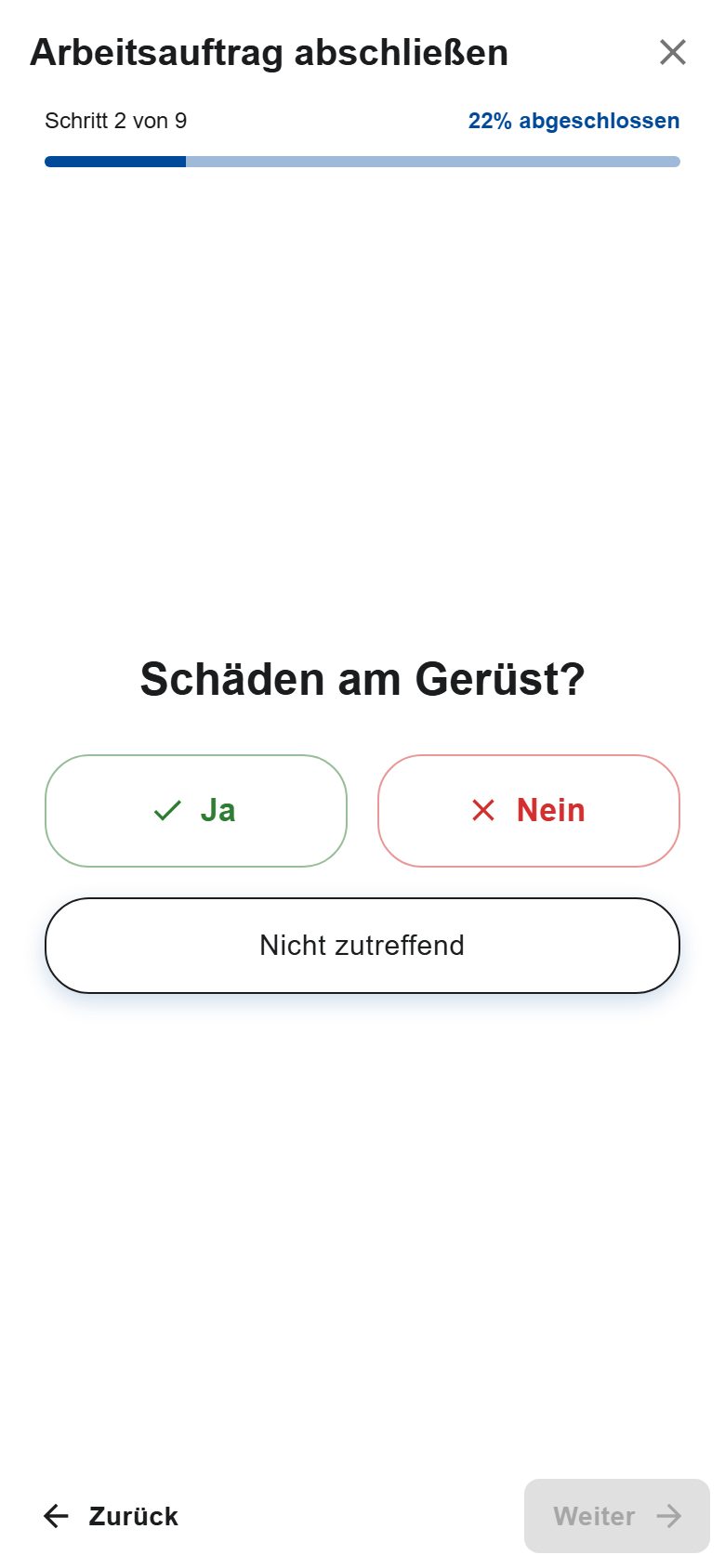
- Quick access → Complete work order.
- Answer Is the construction site finished? with Yes or No.
- For a dismantling or partial dismantling, answer the checklist. If an answer differs, describe the defects.
- If you reported a dismantling as finished, confirm the complete dismantling and tap Confirm disassembly.
- Add a Note if needed and tap Complete.
You can submit the report again later. A dismantling reported as finished can close the scaffold (After dismantling).
Releasing a scaffold
If the Construction site tab shows “Section is closed.”, tap Release and scan the QR sign on the scaffold. This only works on a phone or tablet (Release on the construction site).
Good to know
- An order is gone: the office has withdrawn it, archived it or taken you off the crew, or only today's is on.
- As crew leader, you can enter construction site time only once you've accepted your order (Construction site time).
- Site managers who are assigned to an order themselves switch on the employee view.