Construction sites
The construction site is the starting point for everything else: sections, work orders, loading lists, documents and invoices all belong to it.
The overview
Under Construction sites there are three tabs:
| Tab | What for | Finished sites |
|---|---|---|
| Billing | Open construction sites with their billing status (Billing) | hidden |
| Tree View | Construction sites by city, street and house number | visible |
| List View | Table with site manager, customer and status, plus Statistics | visible, gray with a tick |
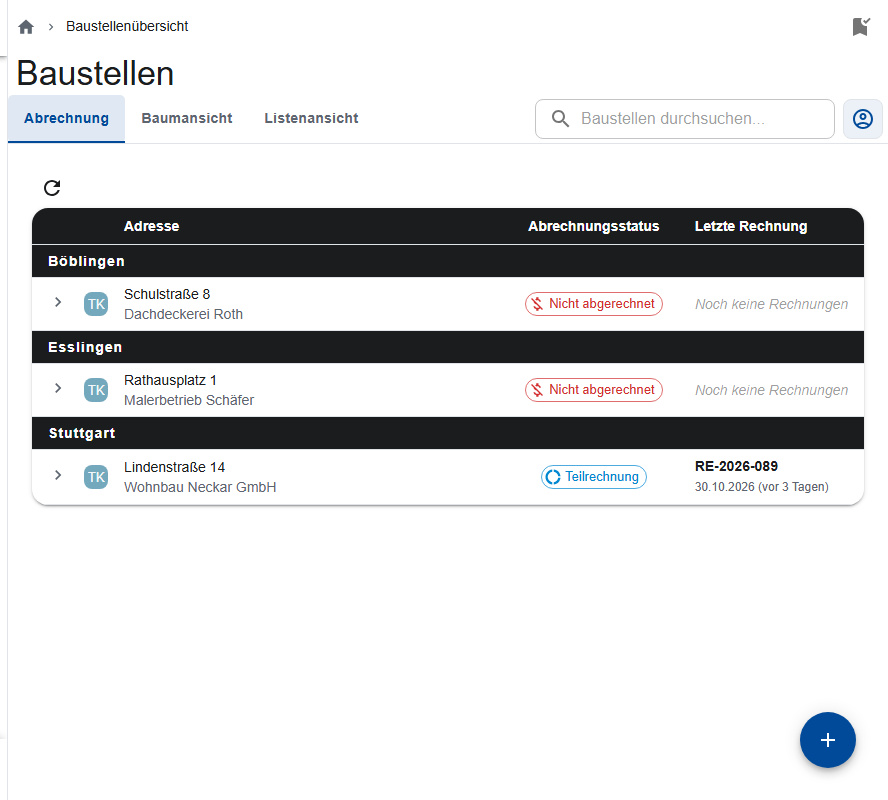
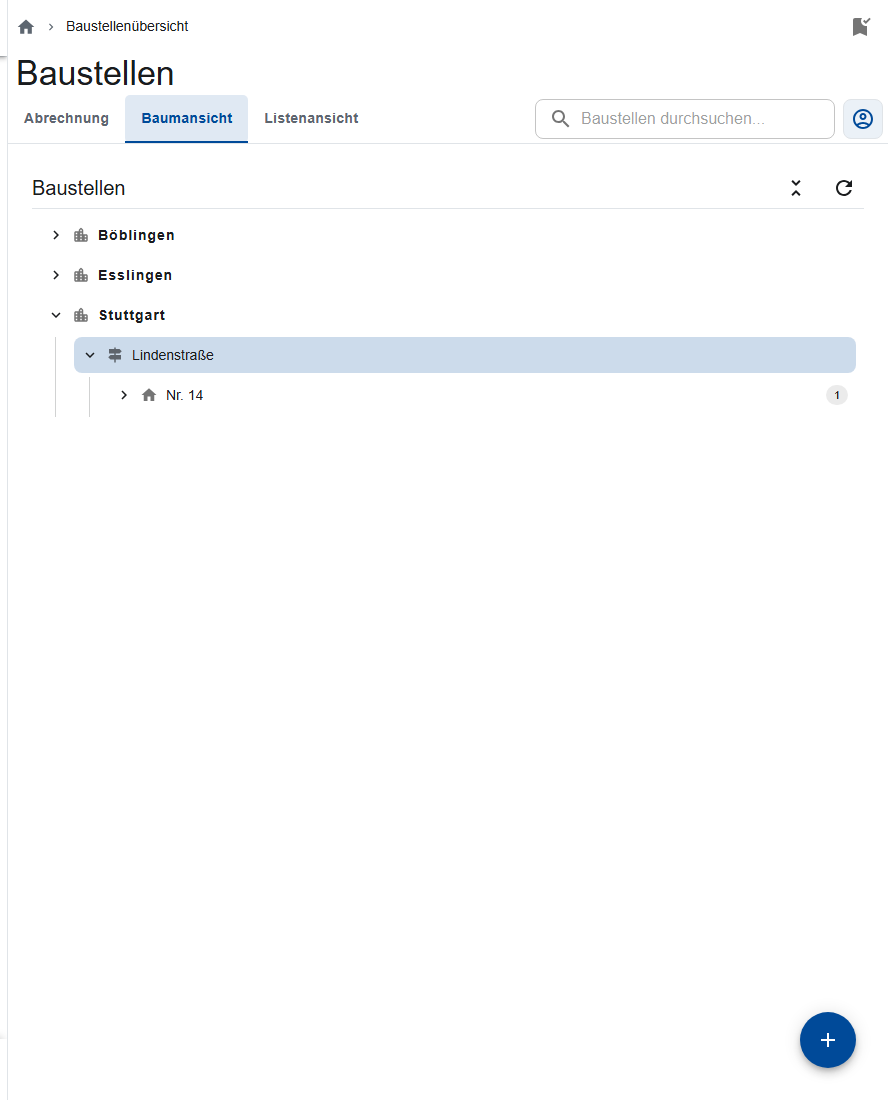
The tree view only searches for city names. To find a street, a customer or a site manager, use the list view. The person icon shows only your own construction sites (Filters).
Statistics (list view) shows a map of one year's construction sites with work orders, filtered by site manager and customer, with the weight of the material from the loading lists. The map only shows sites whose address was entered with Search address.
Creating a construction site
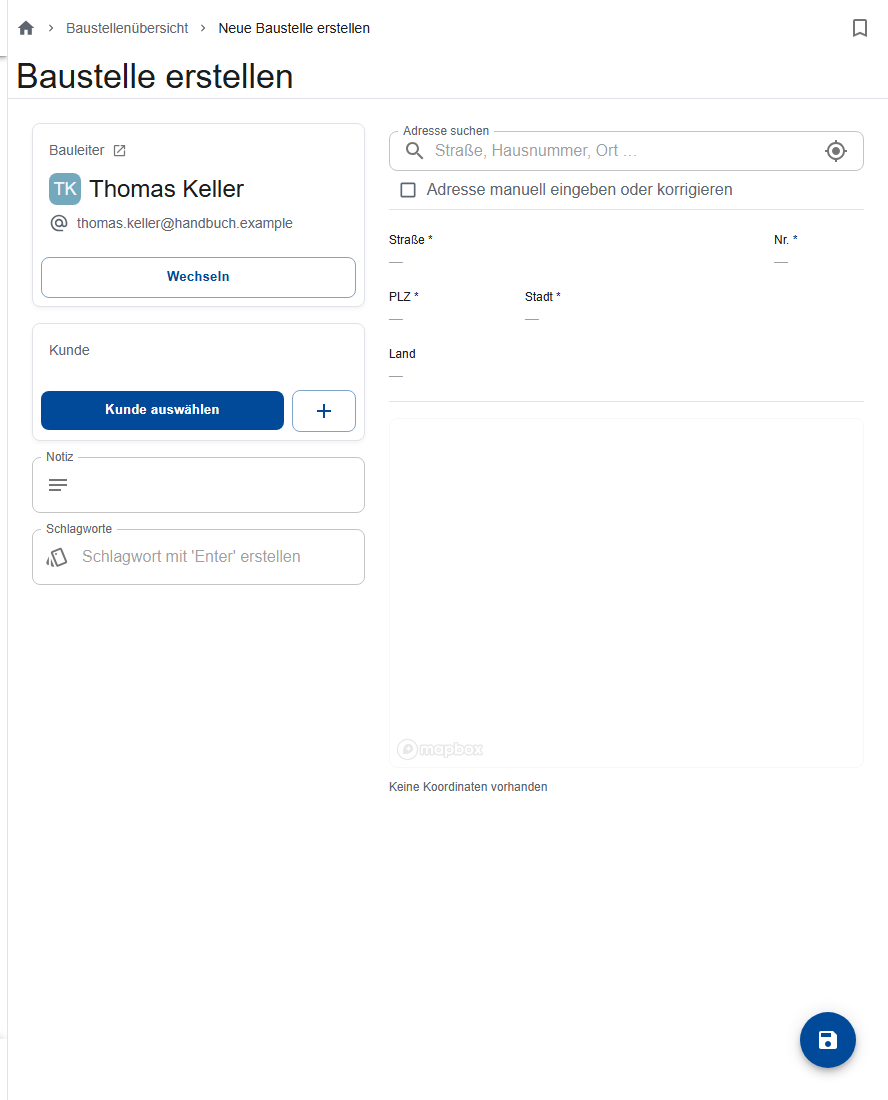
- Tap + in the overview.
- Site manager: If you're a site manager, you're preset; choose someone else with Change.
- Customer: Choose the client or create them with Create customer. Then choose the Contact Person; they get the release emails, for example.
- Address: Type it into Search address and choose a suggestion. Adjust it under “Enter or correct address manually”. Street, house number, postcode and city are required.
- Optional: Note (for example the access road) and Tags (confirm each with Enter).
- Tap Save.
A construction site at a glance
| Tab | Content |
|---|---|
| Information | Site manager, customer, contact person, note, tags and address with map |
| Documents | The site's file storage, including crew photos, inspection reports and dismantling notices |
| Loading Lists | Linked loading lists and the Excel template for a new one (Loading lists) |
| Sections | The site's scaffolds with their release status (Sections) |
| Work Orders | The orders; if you choose a section on the left, only its orders |
| Invoices | Partial and final invoices with the total (Billing) |
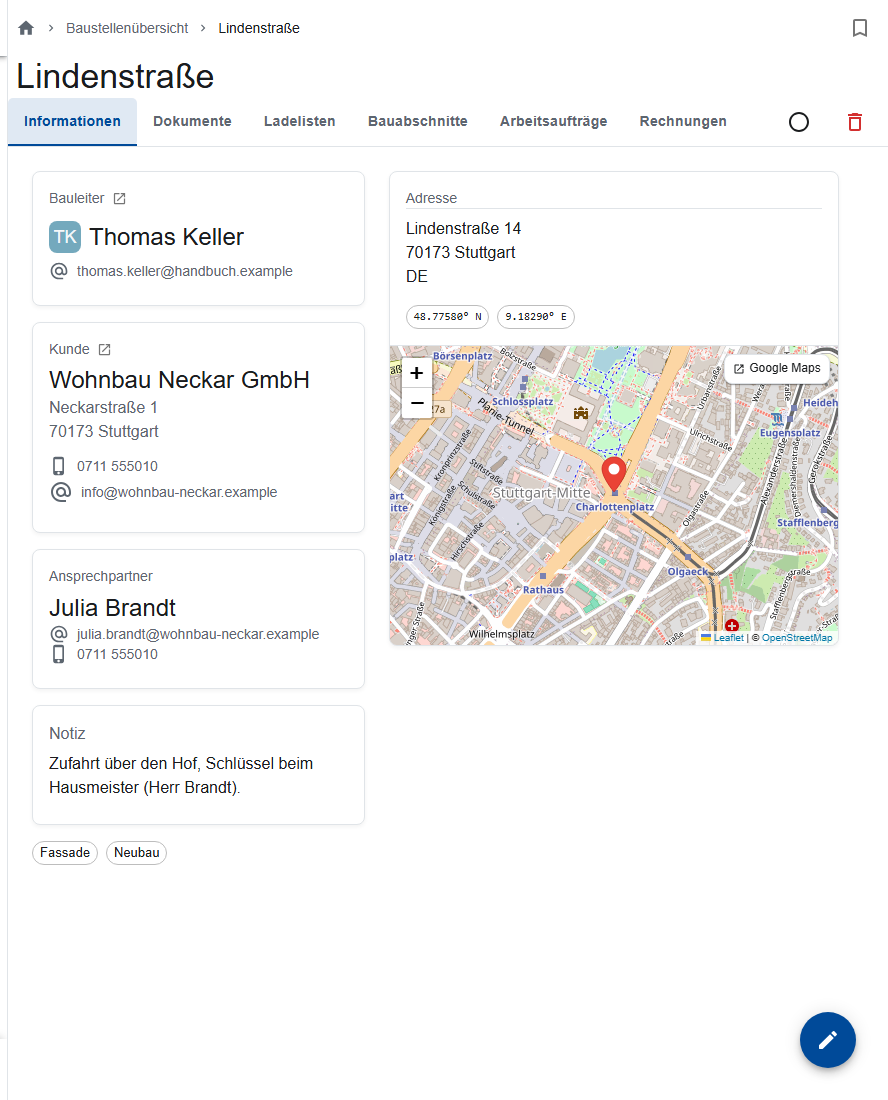
The crew doesn't see the site's documents. Attach what they need to the work order.
Editing, finishing, deleting
- Edit: Edit Construction Site at the bottom right of the Information tab.
- Finish: the circle icon at the top right (“Finish Construction Site”) or in billing. The site disappears from billing, but stays in the tree and list views and can still be chosen for work orders. Reopen Construction Site brings it back. A final invoice finishes the site automatically (Final invoice).
- Delete: the bin at the top right of the construction site. This deletes its file storage; loading lists and work orders remain. Deleted sites can't be restored, so finish them instead.
On the phone
On the phone you see the same data as cards. Swipe the tabs sideways; more actions are in the menu (three dots) at the top right.


Who may do what?
Site managers and the office use the construction sites area, including the invoices.