Navigation and start page
This is how you find your way around ScaffConnect: where the areas are, how you pin the ones you use most and where you change your settings.
Phone or computer view
The app adapts to the width of your screen:
- Phone and tablet in portrait: a bar at the bottom with your most important areas.
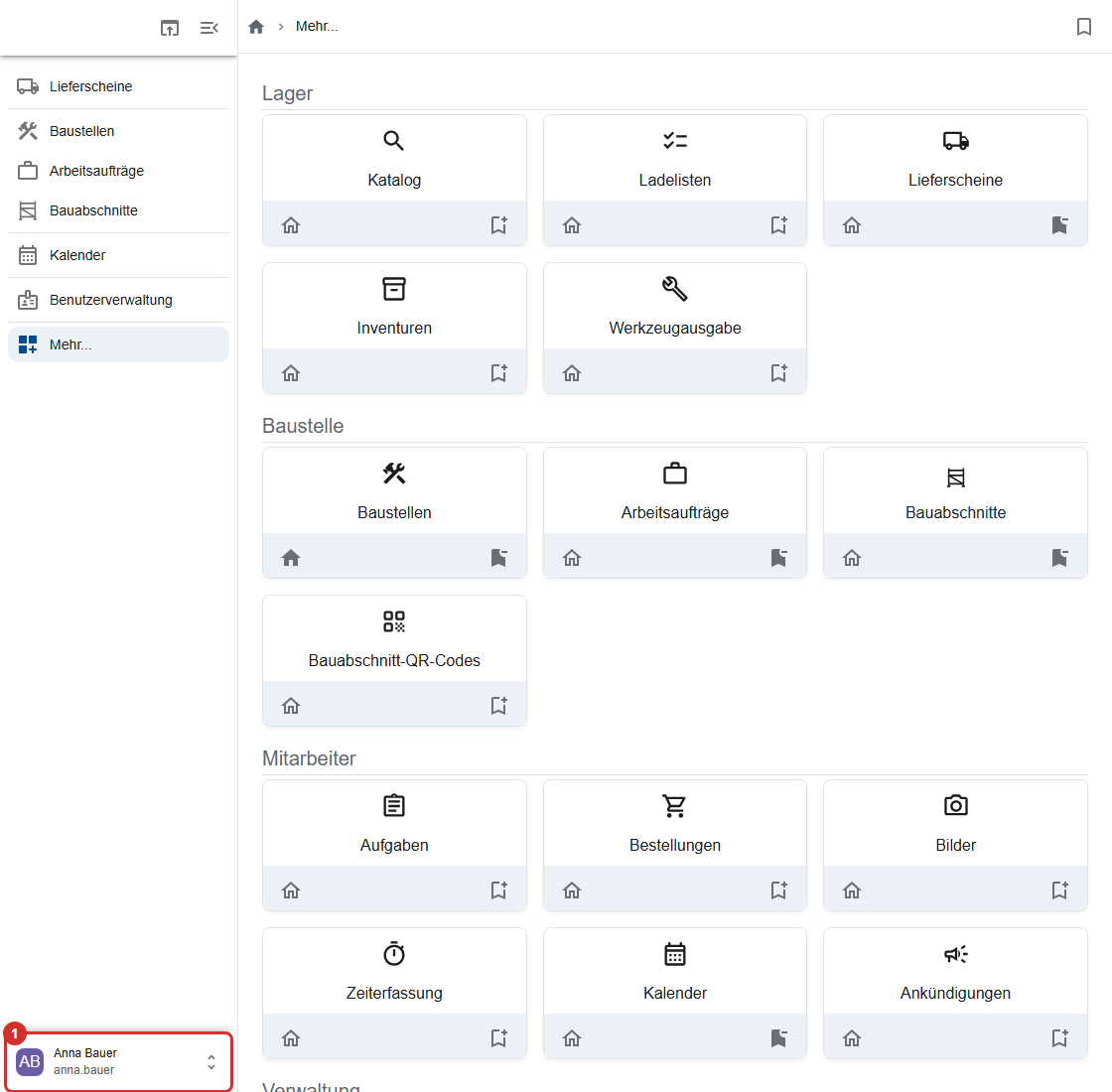
- Computer, laptop and tablet in landscape: a sidebar on the left.
If the view doesn't suit your tablet or computer, set it in your profile under View: Automatic, Desktop or Mobile.
On a computer: the sidebar
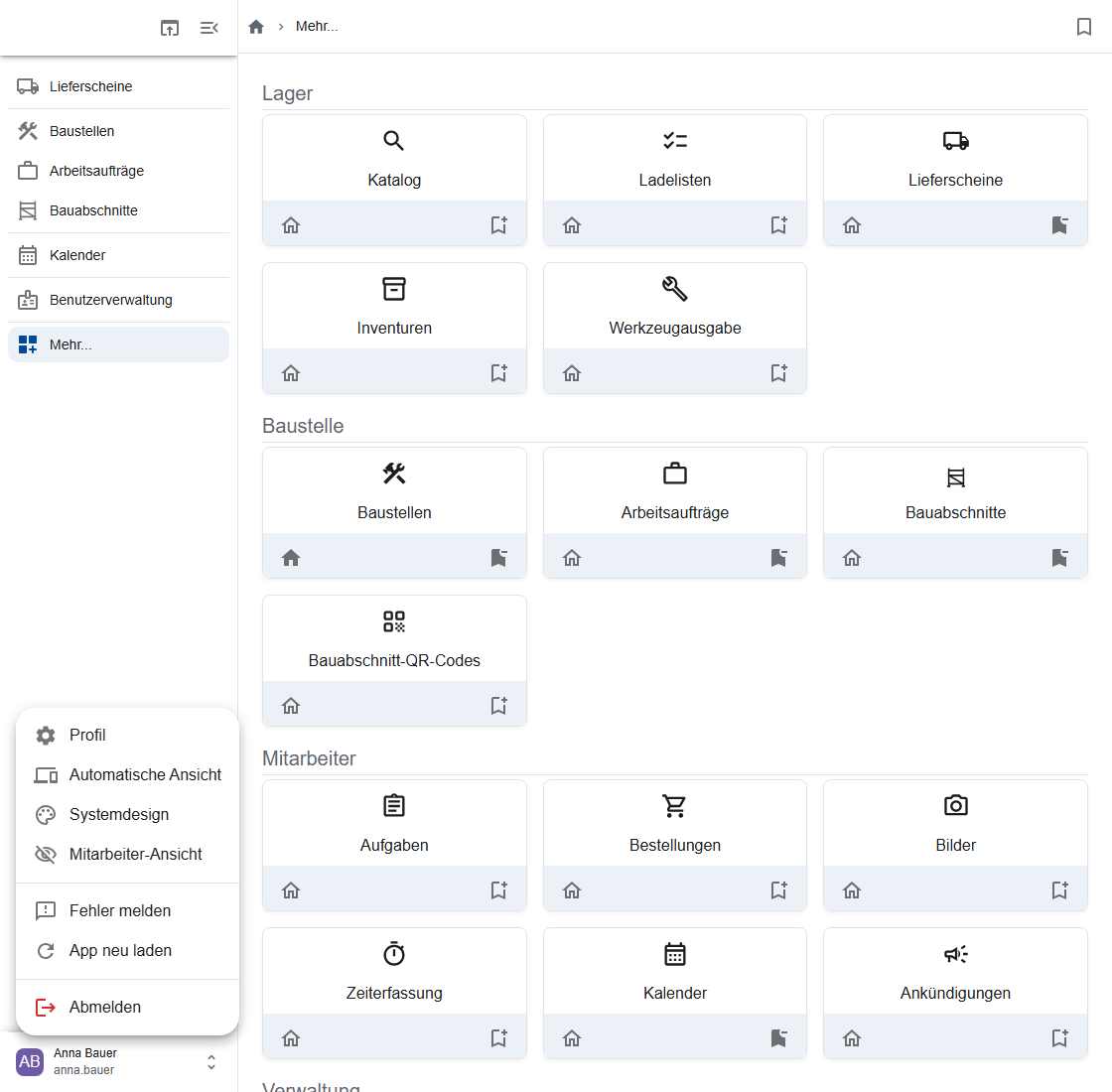
On the left are the areas you pinned. At the very bottom, your name (①) opens the user menu with profile, view, color mode, Help, Report error, Reload app and Logout. Help (also under More…) opens this handbook in a new tab.
On a phone: the bottom bar
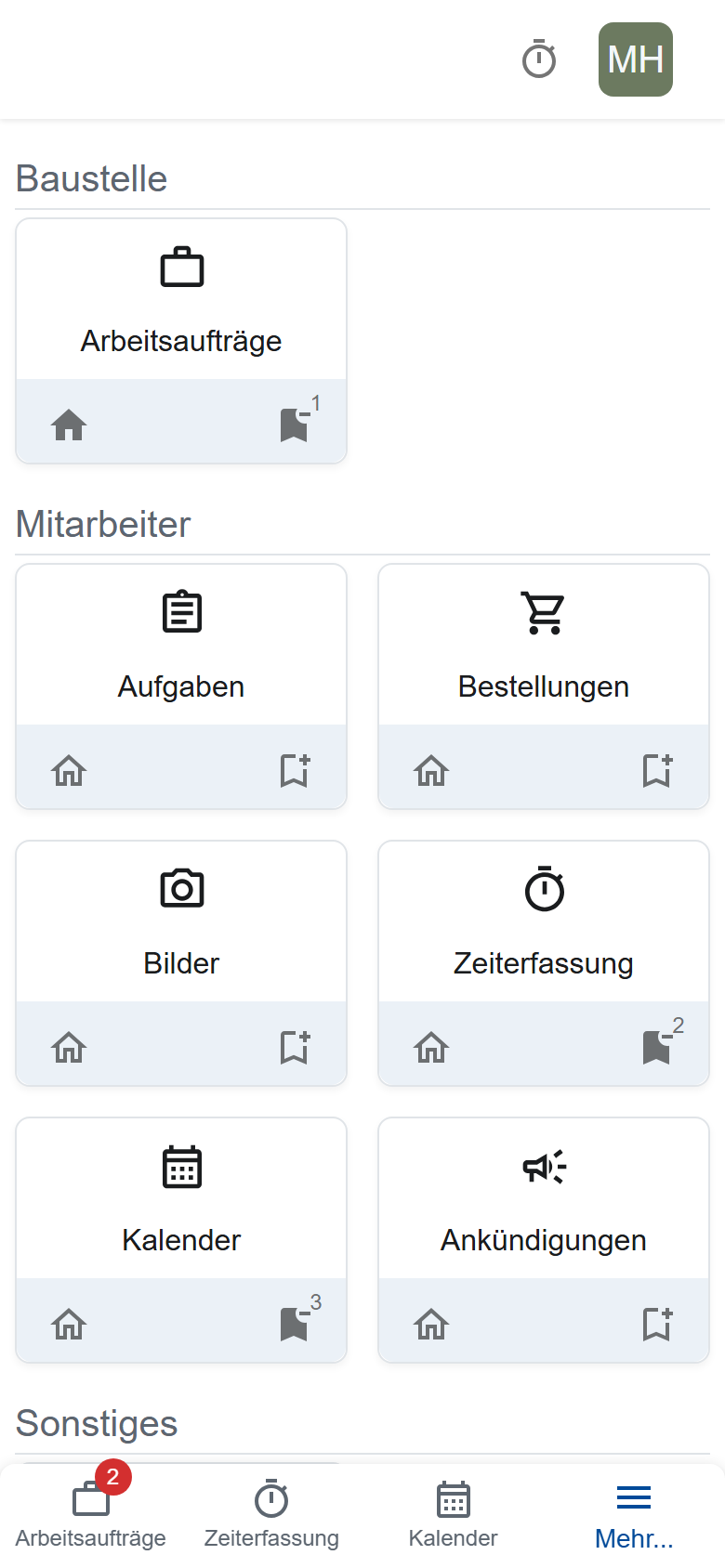
At the bottom are up to three areas and More…. At the top right, your profile picture opens the user menu.
Pinning areas
Under More…, you find all areas you're allowed to use. Each tile has two icons:
- House (“Set as home page”): the app then opens in this area. Phone and computer each have their own home page.
- Bookmark: pins the area to the sidebar (computer) or the bottom bar (phone), on all your devices.
What else is under More... is shown in More areas.
Profile and settings
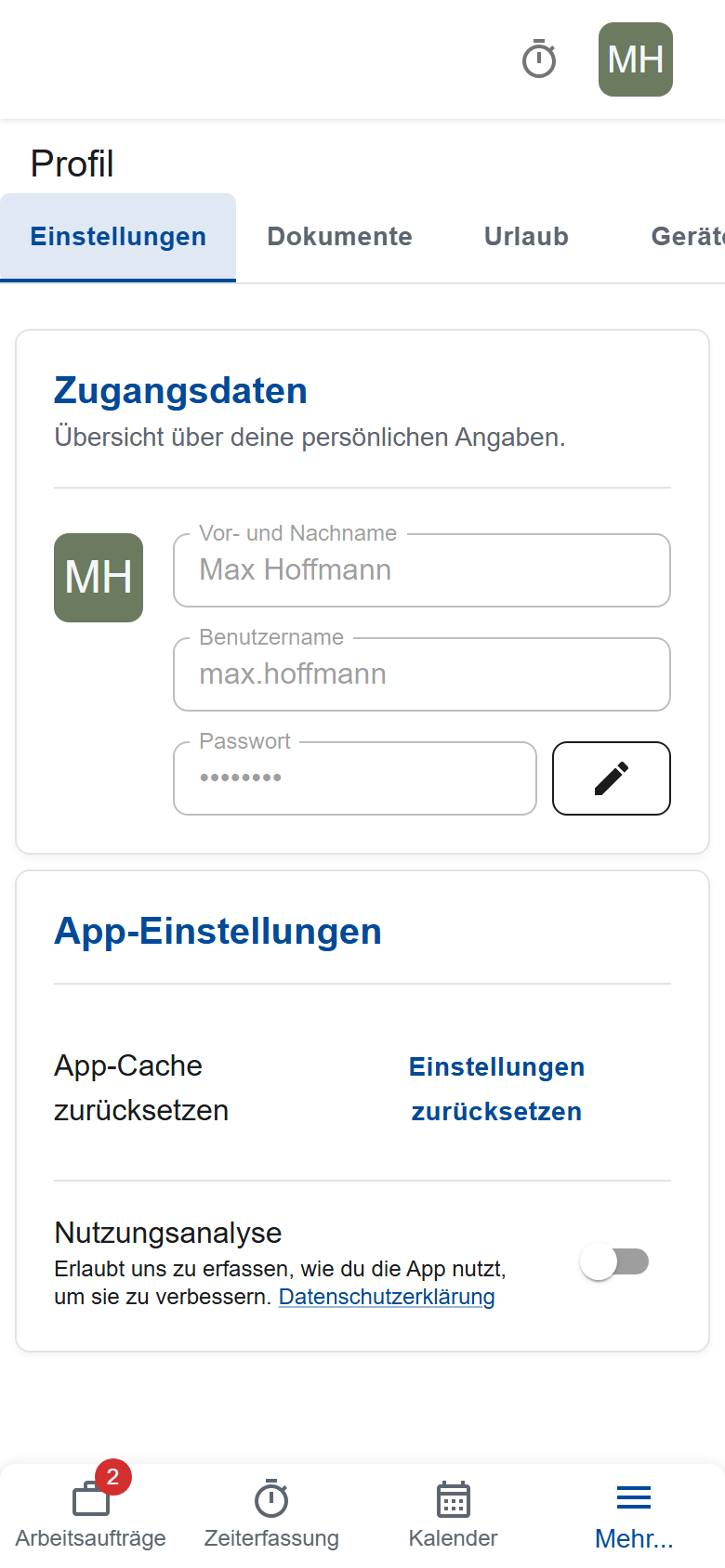
You open your Profile from the user menu or via More… → Settings:
- Change password. After that, you log in again on all devices. Your administrator changes your name and username.
- Reset settings: deletes saved filters and searches on this device. This helps when a list looks oddly filtered.
- View (only on a tablet or computer) and Usage analytics.
Filtering lists
Many lists open with a preset filter. If a list shows less than you expect, turn the filter off at the top of the list:
- only mine for construction sites, sections and work orders: only your own; for construction sites, the ones you're the site manager of,
- only today's for your work orders,
- Assigned to me for loading lists.
The app remembers your filters and searches on this device. If a list looks oddly filtered, tap Reset settings in your Profile.
Seeing the app like an employee
If you plan construction sites and work orders, the app shows you more than it shows a crew member. The Employee view (user menu or Profile → Settings) hides that. Use it to explain to a crew member on the phone where to find something, or to accept an order yourself as crew leader.
It applies on this device until you log out. Exit employee view switches back.
Without internet
- You can still view pages you opened recently; the data may be out of date.
- Saving only works again once you're back online.
- The app uploads photos on its own as soon as you have a connection again, even after a restart.
Upload your photos before you log out
Photos still waiting to be uploaded are lost when you log out. Only log out once you're back online and the photos have been uploaded.
Reporting a bug
Tap Report a bug (under More…) or Report error (in the user menu). Describe what you wanted to do and what happened, and tap Send feedback. Name your company in the text; the report only contains your username.