Logging in and installing the app
Logging in
- Company: Enter your company's ID and tap Search. If you don't know it, enter part of the company name (for example “sample”) and choose your company.
- Username and password: You get both from your administrator. Tap Log in.
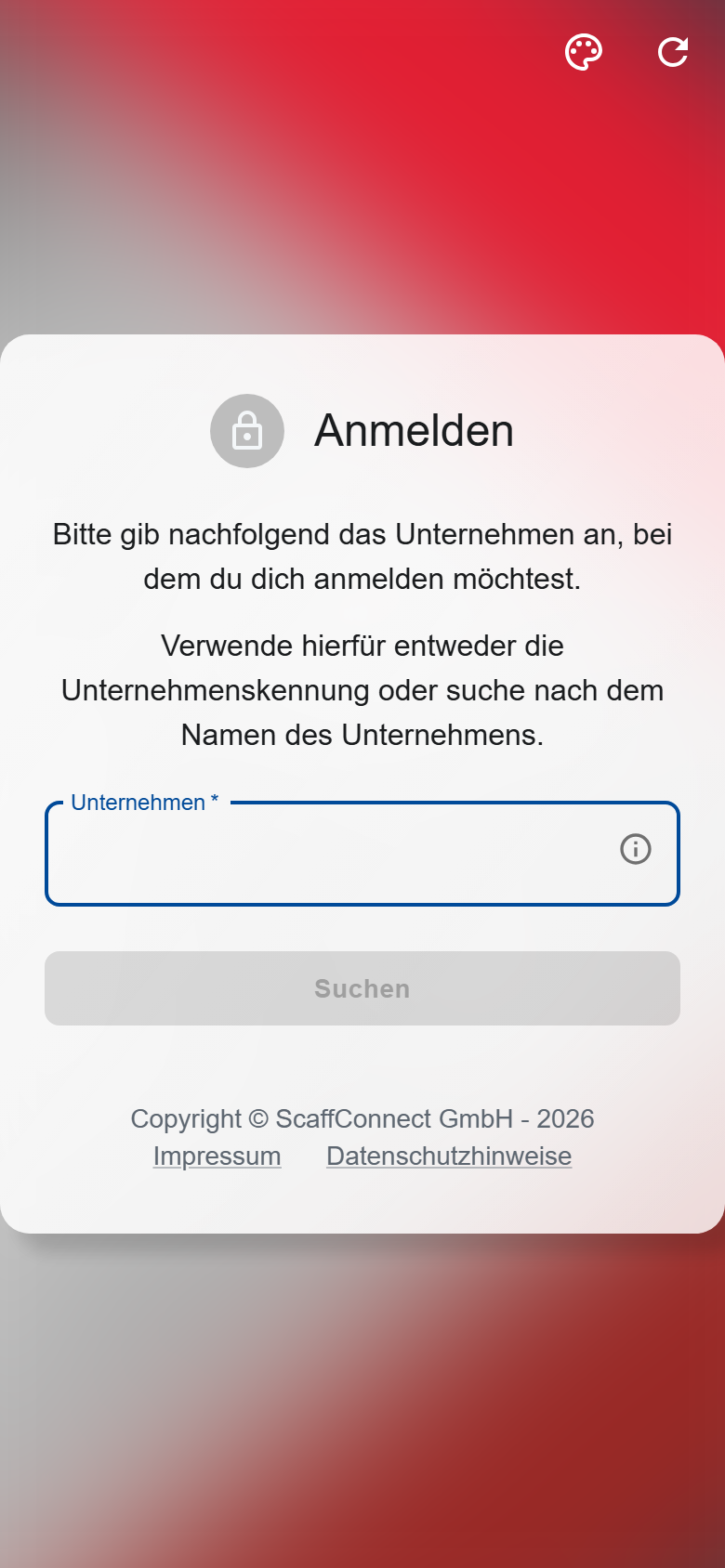
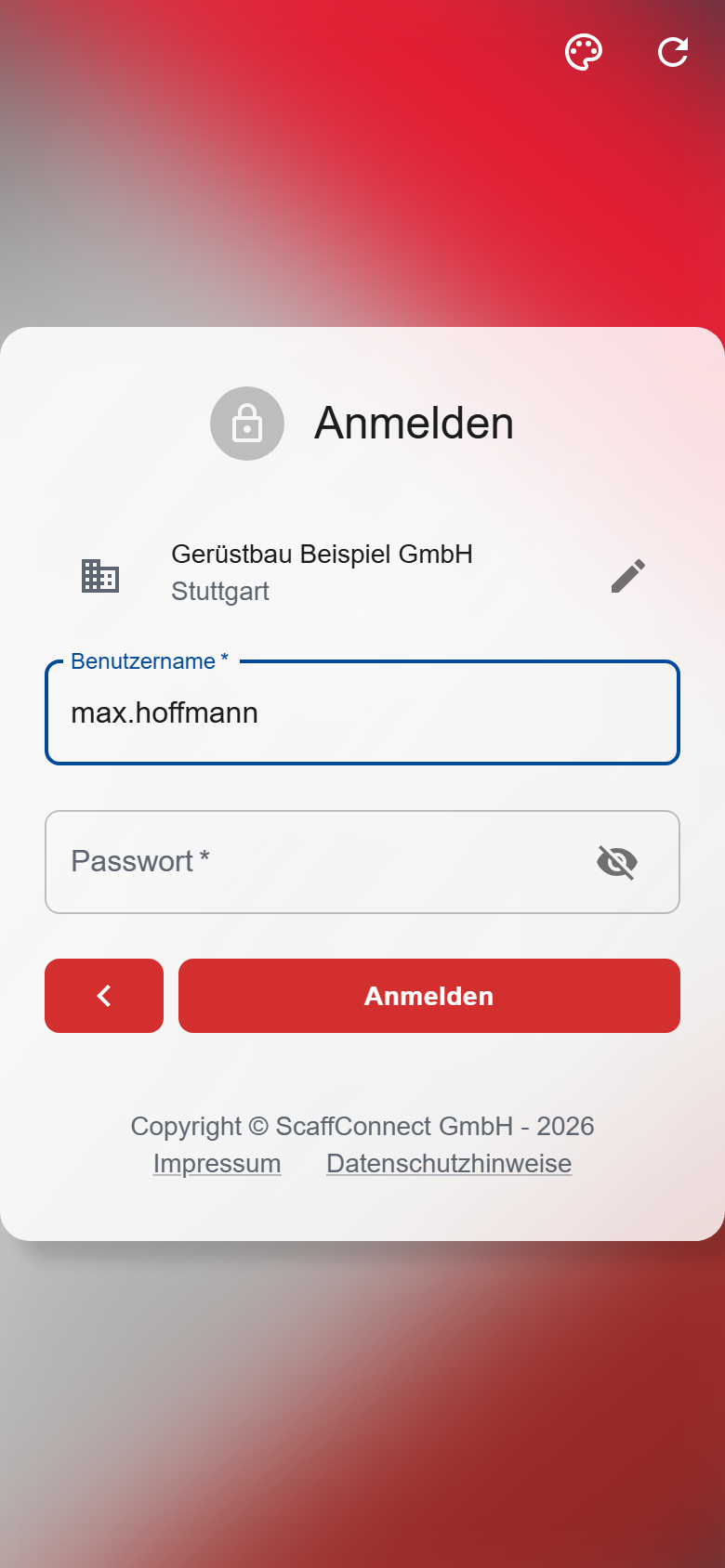
Next time, the app starts at step 2. To switch to another company, use the pencil next to the company.
Can't log in?
- “Wrong username or password!”: The password is case-sensitive. Your administrator can give you a new password.
- “You are currently not authorized to use the app!”: Your user is locked or hasn't been activated yet. Ask your administrator.
- “Your company is currently not activated for the use of this app.”: Contact us.
Signing the safety briefing
If your company has a safety briefing for you (Company briefing), it appears right after you log in. You can't use the app until you've signed it.
- Read the documents.
- Check the box and tap Continue.
- Sign in the field and tap Confirm.
If the app asks “Help us improve the app”, choose whatever you like; the app works the same either way. You can change your answer in your profile under Usage analytics.
Installing the app
On a phone, you put the app on your home screen; it then opens like a regular app.
- Android (Chrome): Under More…, tap Install app and confirm.
- iPhone and iPad (Safari): Tap the Share icon (if you don't see it, tap “…” first), then Add to Home Screen and Add. Open the app from the new icon and log in again there.
- Computer: In Chrome or Edge, use the install icon in the address bar, or add a bookmark.
How long do I stay logged in?
A login is valid until a fixed date, even if you use the app every day; after that, you log in again. You're also logged out when your password is changed or your user is locked. Don't log out yourself while photos are waiting to be uploaded (Without internet).
Devices
In your Profile, tab Devices, you see which devices you're logged in on and until when your login is valid (“Session expires”). If you've lost a phone, log it out there.