Delivery notes
A delivery note records which material leaves the warehouse or comes back. The warehouse and the customer sign it on the device.
Finding a delivery note
On a phone, you find delivery notes in the Lists area, on the Delivery notes tab. On a computer, go to More… → Warehouse → Delivery notes. If you don't see that entry on the computer, use your phone.
The list shows the type (issue or return delivery), customer, date, license plate and status. Site managers and the office start with the Assigned to me filter. If a delivery note is missing, turn that filter off and also select “Fully signed” under Status (Warehouse).
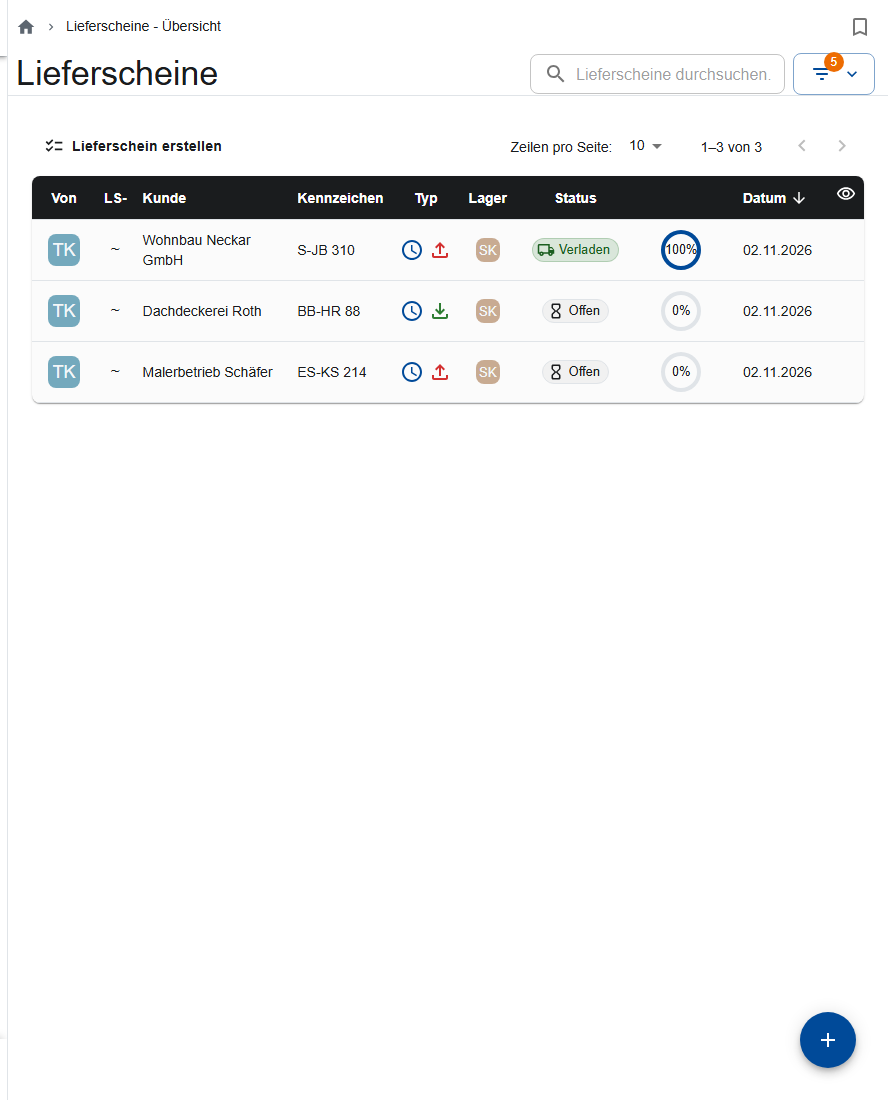
The Warehouse Status shows how far along a delivery note is:
In the Status (Warehouse) filter, the stages are called “Being loaded”, “Fully loaded” and “Fully signed”.
Creating a delivery note
- Tap Create Delivery Note (+).
- Choose Issue or Return. For an issue, also choose Rent or Sale.
- Choose the Customer and enter the Construction Project.
- Enter the License Plate, Responsible Person (Customer) and Warehouse Employee (preset to you). All three are required by the time you sign, at the latest.
- Components tab: add the line items with their quantities.
- Save.
Until the first signature, the delivery note is a draft without a number; the app assigns the number with the first signature. If you forgot to save, the app offers the unsaved draft again the next time you open it.
Loading
A new delivery note is visible to the warehouse right away. The office can hold it back with Hide for warehouse and make it visible again with Unlock for warehouse.
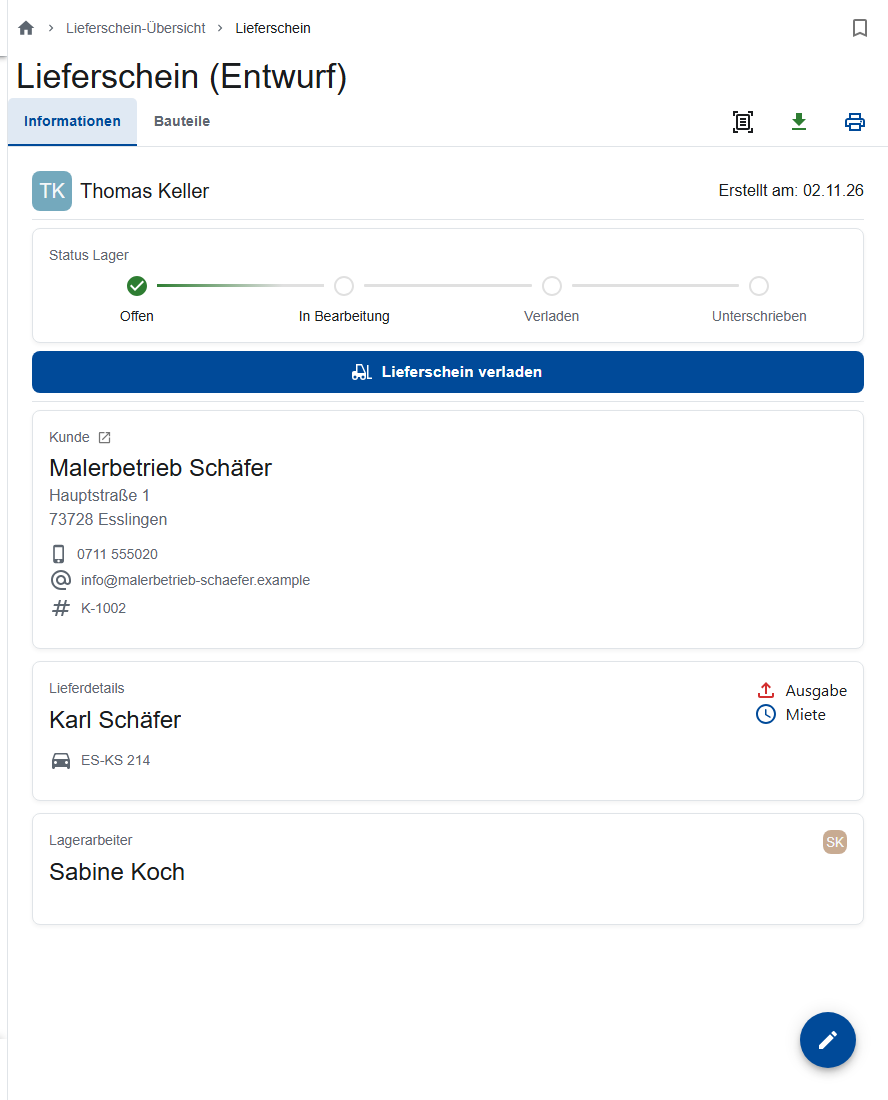
- Open the delivery note and tap Delivery note loaded.
- Tap the forklift icon on each line item, enter the loaded quantity and tap Load.
- Once all line items are loaded, the app asks whether you want to sign the delivery note now.
You load a return delivery the same way: you record the quantities that came back.
Photographing the load
If your company requires photos of the load, you need them for every issue before it's signed:
- Load everything first.
- In the Images of the load card, tap Photograph the load or Select images. The app shows how many photos are still missing.
If you change anything about the load after that, the earlier photos no longer count. Take new ones then. Return deliveries and cancellations don't need photos.
Signing
- Tap Yes, sign delivery note now. If you chose Later, tap Sign delivery note in the delivery note.
- If details are missing, for example the License Plate, the app names them. Fill them in with Add now.
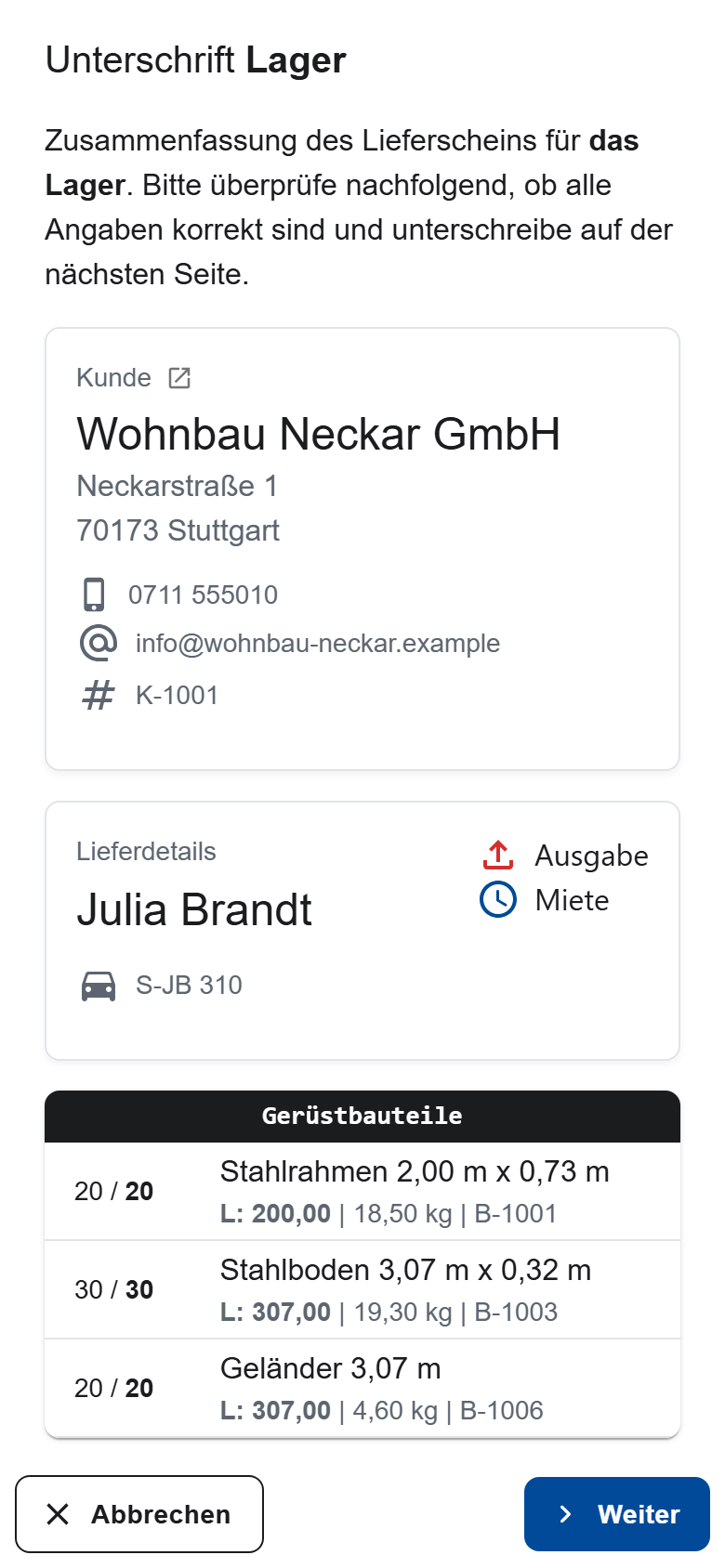
- The warehouse worker checks the summary, taps Next and signs.
- Then the customer checks their summary and signs.
- Print or Send via email; the customer's email address is filled in. If the PDF isn't ready yet, it appears on its own as soon as it's there.
Changing a signed delivery note
If you change the customer, parts, quantities or load after signing, the app asks “Yes, remove signatures and edit”. After that, the warehouse and the customer must sign again. The number stays; the delivery note can then no longer be deleted, only canceled. You can change the Note at any time.
Canceling
What you do when something is wrong depends on how far along the delivery note is:
- Never signed: change it or delete it.
- Signed, material still here: change it and have it signed again.
- Material is already gone: cancel it. The office then creates a counter document, the Cancellation.
To cancel a delivery note:
- Open the delivery note and choose Cancel.
- Answer whether the material has already been returned (for an issue) or handed out again (for a return delivery):
- Pending: The cancellation goes to the warehouse. The warehouse loads it and signs it alone, without the customer.
- Returned / Handed out: You confirm that all of the material has been moved. The cancellation is complete without a signature, and you're recorded as the person who confirmed it.
- Tap Cancel now. You can't undo this.
The cancellation gets a number right away and contains only the line items that were loaded, with the loaded quantity. The only thing you can change on it is the note. You can't cancel a cancellation or an archived delivery note.
Who can do what?
- Create and load: warehouse, site managers and office.
- Hide for warehouse: the office, and site managers in the list on a phone.
- Delete photos of the load (only before signing): the person who took the photo, site managers and office.
- Cancel and delete: only the office.