Sections and QR codes
A section is a single scaffold on a construction site, for example “Haus A – Fassade Nord”. It's released and closed, carries the QR code on the scaffold and belongs to the work orders that take place there.
The overview
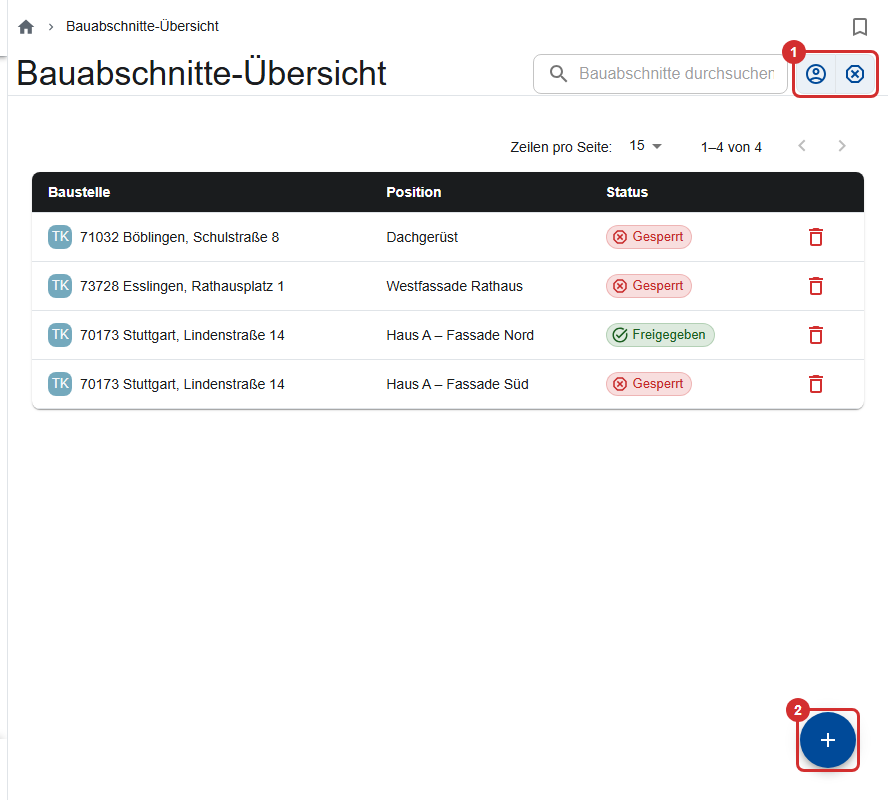
Under Scaffolds you find the sections with their construction site and status. Next to the search (①), “Show only my construction sections” and “Show closed construction sections” are switched on by default. If a section is missing, switch off “only my”.
Creating a section
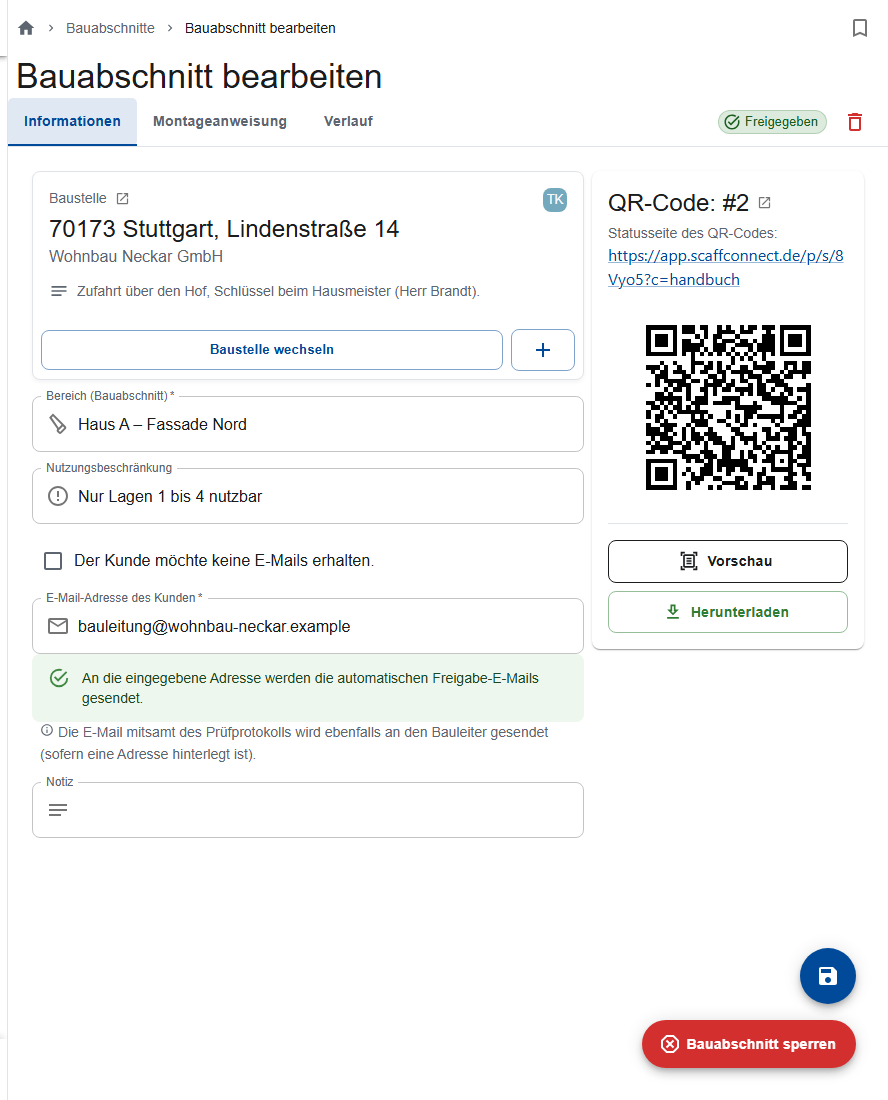
- Open the construction site, tab Sections, and tap Add a new construction section. Or tap Add Section (②) in the overview and choose the construction site.
- Section: a name everyone understands.
- Restriction of use: optional, for example “Only levels 1 to 4 usable”. It appears on the status page of the QR code.
- Customer's email: The app fills it in. The inspection report goes to this address with every release. If the customer doesn't want emails, set “The customer does not want to receive emails.”
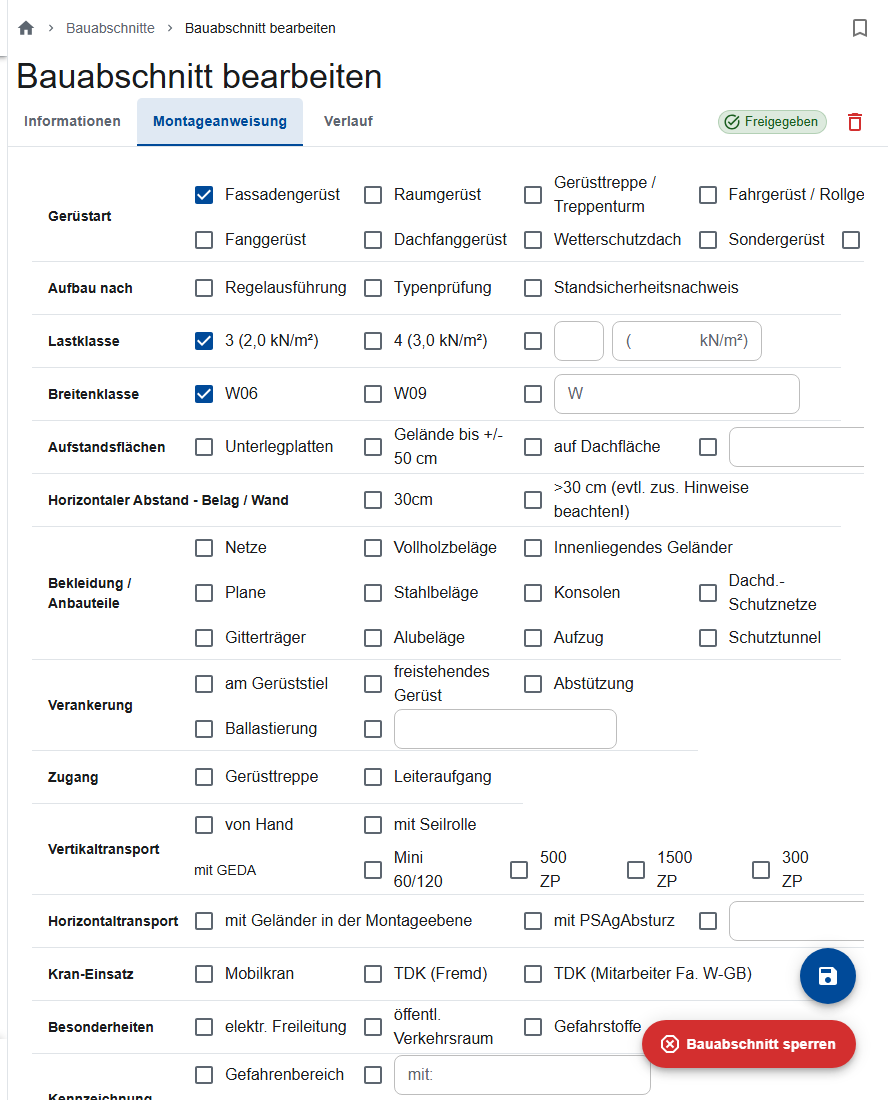
- Tab Assembly instructions: Tick at least one box each in Scaffold type, Load class and Width class; otherwise the app reports “Details incomplete” when you save. The hazard analysis of the work orders is later built from this.
- Save.
A new section is closed. How to release it is described under Scaffold release with QR code.
If the customer has unsubscribed from the release emails, the field shows a notice (Unsubscribed email addresses).
Construction state
The construction state appears in Billing. It changes through the reports of work orders whose only task is erection or dismantling:
An erection report does not release the scaffold; that remains a separate step. After dismantling, the app closes the scaffold (Closing after dismantling).
History
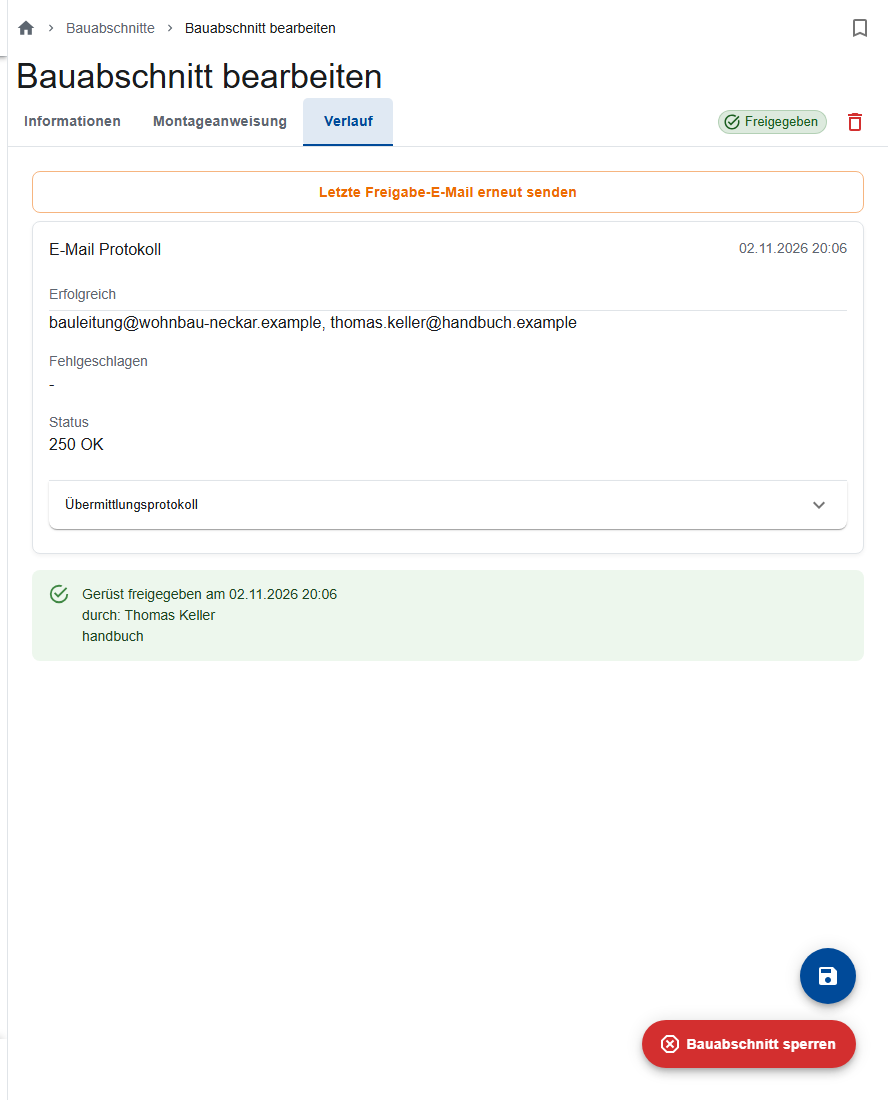
The History tab lists every release and closure and every release email with its recipients and status. From here you send the last release email again.
Changing the construction site
- Open the section's Information tab.
- Choose the right site with Change Construction Site.
- Save.
A released section is closed in the process and has to be released again. The email address is replaced by that of the new construction site.
Deleting a section
Delete (bin) removes the section. Its QR sign then shows “not found” when scanned. If the scaffold is just no longer in use, close it instead.
QR codes
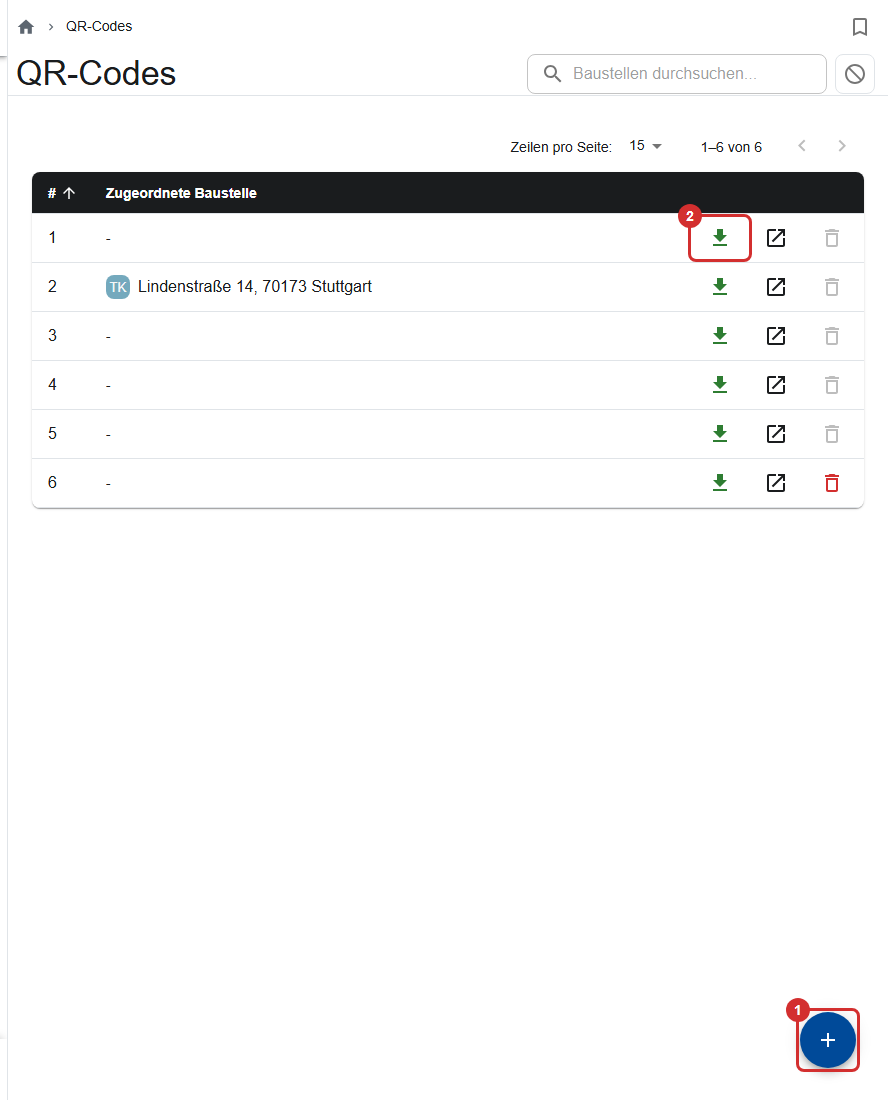
Every scaffold gets a scaffold release sign with a QR code when it's released. You manage the signs under More… → Scaffold QR codes.
- Create a QR code: + (①) creates a QR code with the next number.
- Print a sign: in the row (②), or in the QR code with Preview or Download. A4 (portrait) is for folding, with warnings and contact details; A5 (landscape) shows only the QR code and a note.
- Find free signs: “Show only unassigned QR codes”.
- Delete: Only the most recently created QR code can be deleted. First make sure it isn't attached to a scaffold.
Reusing signs
After dismantling, a sign is free again. If you choose a sign for a release that is still attached to another scaffold, that scaffold is closed without asking. So take a free sign.
What the scan shows is described under The status page behind the QR code.
Who may do what?
Site managers and the office manage sections and QR codes.