Managing times and vacation
As an admin, you see and change the times of all employees, on any day, under Time tracking. You handle the requests under More… → Vacation requests.
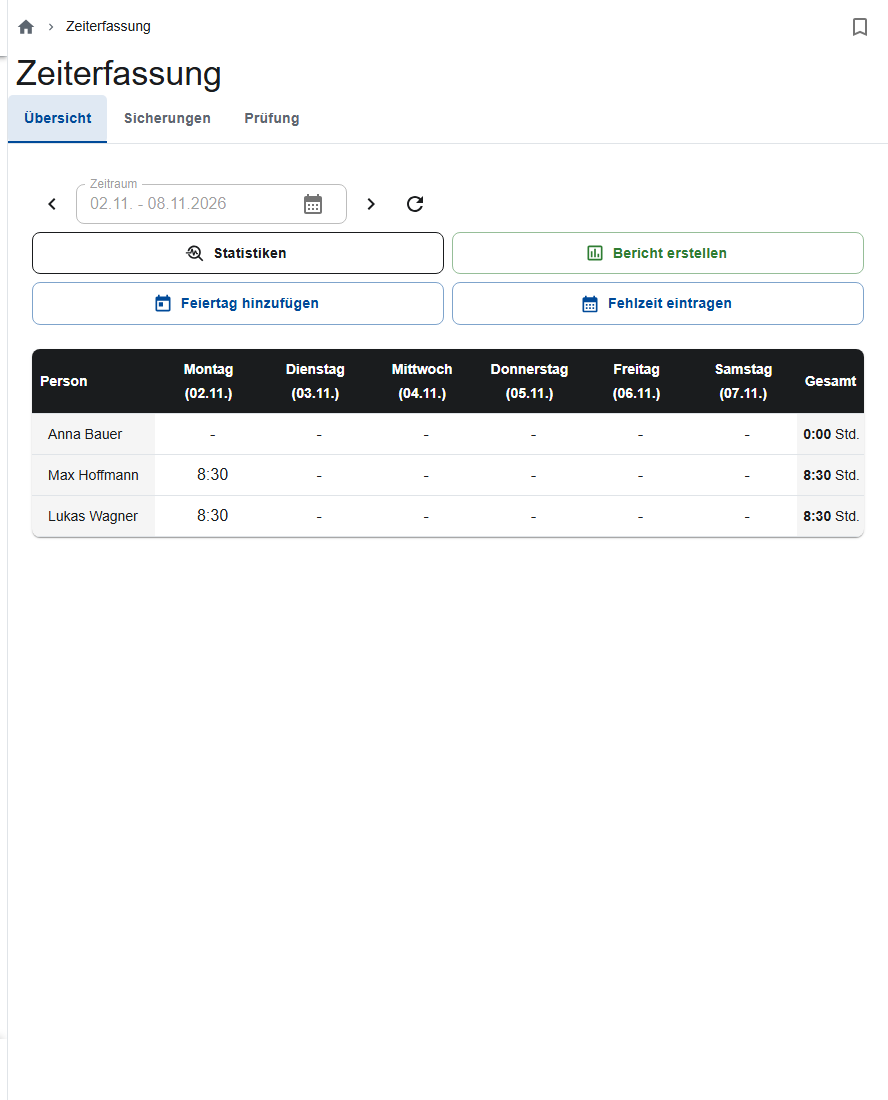
Changing times
- Open the Overview tab and use the arrows to go to the week.
- Click a cell and choose edit, set an absence or delete.
- For an entry with several employees, choose whether to delete the entire entry or only remove the employee.
From 12 noon, Add debriefing time adds 15 minutes after the last entry.
Entering absences and public holidays
- Enter absence: choose the employees, the period and the type (for example vacation). The app skips Saturdays and Sundays. It only overwrites existing entries after asking you.
- Add public holiday: enters the day as "Public holiday" for all employees with time tracking.
Report and statistics
Create report gives you the daily reports of selected employees as an Excel file, month by month. Statistics shows the evaluation per employee.
Backing up and checking a month
- In the Backups tab, create a copy of the month with Create new copy. Without a copy, the month doesn't appear under Validation.
- In the Validation tab, check day by day and mark each day as checked. Changes here affect the real entries.
Restoring replaces the month
Restore on a backup deletes all current entries of the month and replaces them with the copy. This can't be undone.
Settings per employee
In User management, on the employee:
- Time tracking tab: working and break times per weekday. Reset to... applies the Standard, Warehouse or Office preset. With Description required for time tracking on construction sites, the employee has to name the site for site time.
- Vacation tab: vacation days in the current year, carryover from the previous year, start and end date.
Anyone who records their own times needs the Time tracking role, admins too.
Handling vacation requests
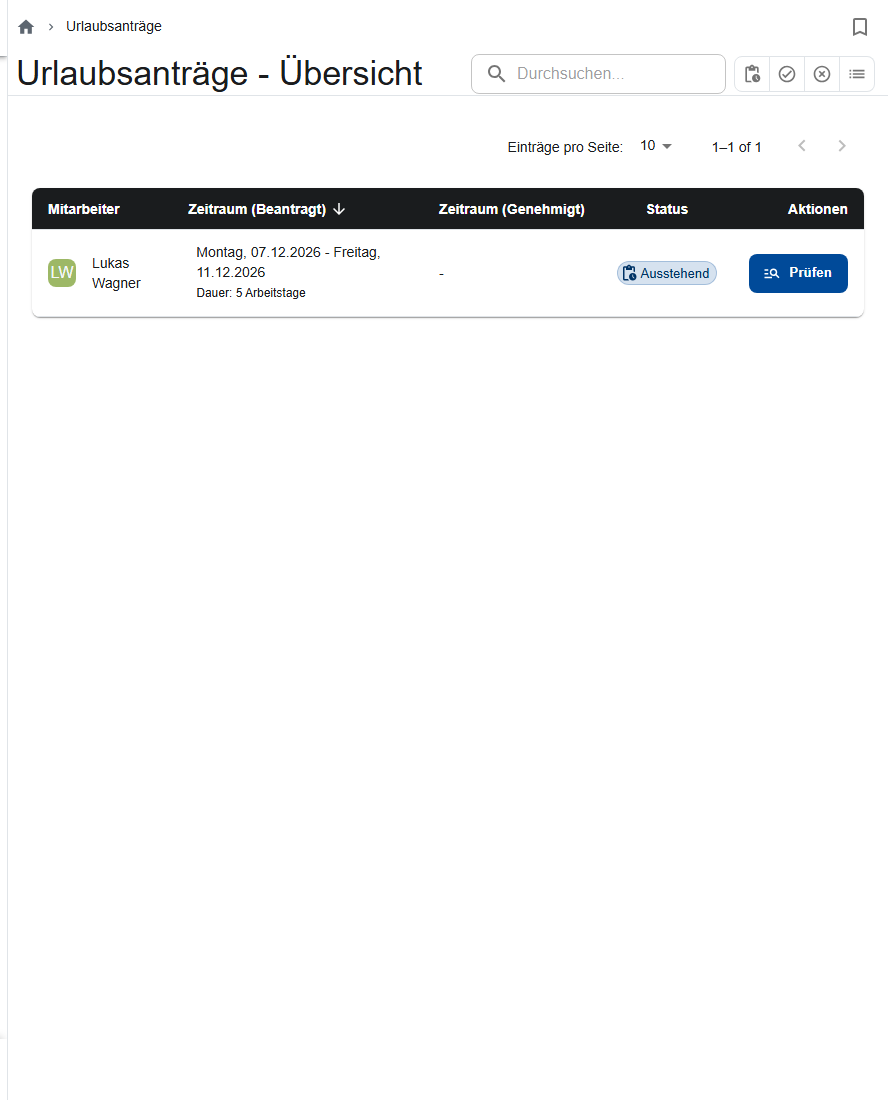
- Open More… → Vacation requests. It shows the pending ones first.
- Choose Review on a request. The dialog shows the employee's vacation account.
- Adjust the approved period if needed and choose Approve, or Deny with a reason.
- Enter the approved vacation as "Vacation" via Enter absence. Only then does it count toward the remaining vacation and show in the employee's calendar.
To withdraw an approval, choose Revoke; the request then counts as denied.
Good to know
- Check for overlapping requests yourself.
- You can approve or revoke vacation in the previous month only until the 3rd of the current month.
- Checked locks nothing: employees can still change their last two days.