Catalog and part relations
The Catalog holds all parts of your company. The office maintains them and decides which parts go together.
Looking up a part
- Open More… → Warehouse → Catalog.
- Search for the part (“What are you looking for?”) and open it.
The Details show description, dimensions, color, weight, stock, packaging unit, article number, category, tags and QR code. Only the office sees the Price.
Managing the catalog (office)
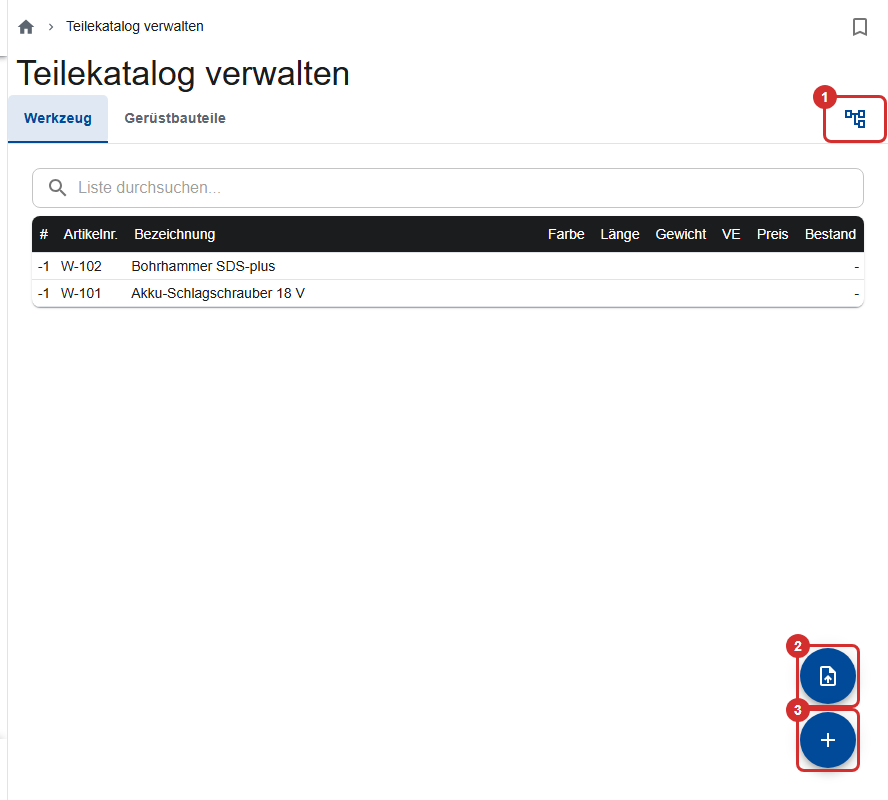
Under Manage parts catalog, the parts are sorted into tabs by Category, your own under “Custom”. At the top, you find Part relations (①), Update parts catalog (②) and + (③).
- Create a part with +: Article no. (each one only once), name, dimensions, weight, price, packaging unit, Pieces per packaging unit, In stock (pcs.), category, color and Tags (other names, separated by commas; they help the search). You add images after saving for the first time.
- Change the stock: in the part's In stock (pcs.) field.
- Delete a part: If it's still in a loading list, a delivery note or a stocktake, the app asks first. Delete it anyway, or swap it for another part with Replace part....
Updating the catalog from Excel
- Tap Update parts catalog and choose the Excel file.
- Match the columns (category, article no., name, dimensions, price …). You set the first row, worksheets and decimal separator under “Other settings”.
- Check the preview. Values that couldn't be read are marked.
- The result shows what was created, restored, updated or failed.
Part relations
Here you decide which parts usually go together, for example toe boards with decks. If something is missing when a loading list is saved, the app points it out; you can still save. Delivery notes aren't checked.
- In catalog management, open Part relations.
- The first time, Apply template creates common groups (frames, decks, guardrails, toe boards …) and rules, and assigns your parts.
- Assign the parts without a group; otherwise they don't count for any rule.
- Adjust groups and rules. Every change is saved right away (this needs a connection).
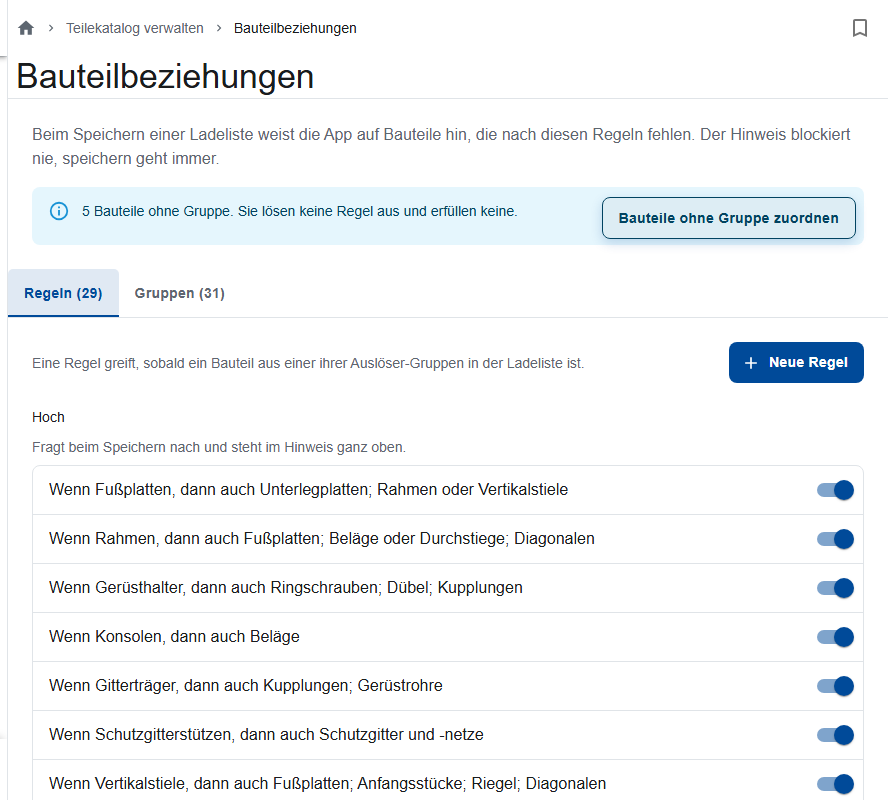
Groups bundle parts that are treated the same, for example all decks (Add group, name, Add parts). A part can be in several groups. You can't delete a group that's used in a rule.
A rule says “if X, then also Y”: if one of the groups under If in the list (triggers) appears, every requirement under Then also must be met; one part from one of its groups is enough. With Rule active, you turn a rule on and off. The Priority decides how clearly the app asks:
| Priority | When a loading list is saved |
|---|---|
| High | asks, listed at the very top of the notice |
| Medium | asks |
| Low | doesn't ask; only appears under “Show more” and in Check list |
Good to know
- The app only asks about new gaps. A gap that someone confirmed with Save anyway isn't reported again.
- Line items with a quantity of 0 and parts typed in freely don't count.
- Check list in the loading list editor shows all gaps, including low ones.