Inventory
You find stocktakes under More… → Warehouse → Inventories. As soon as a stocktake exists, other employees see the entry too.
With a stocktake, you count the stock in your warehouse. Once it's finished, the office applies it as the new stock.
OfficeWarehouse
1. CreateName, notes, employees
2. Make visible to the warehouse
3. CountEnter quantities or scan QR codes
4. Finish
5. Apply to stock
Creating a stocktake (office)
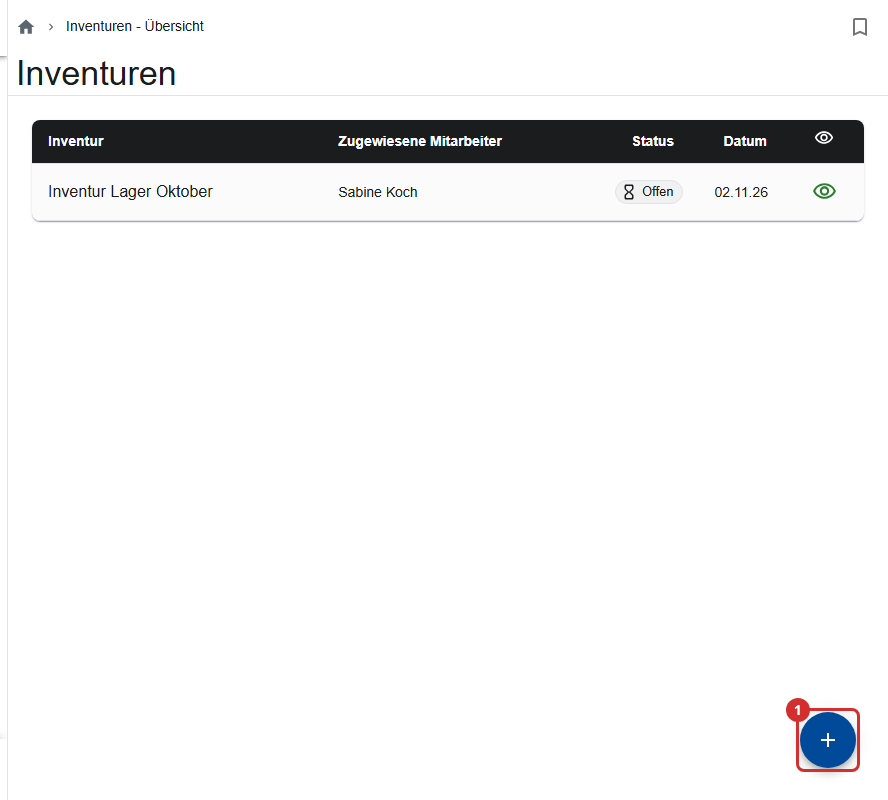
- Inventories → Create Inventory (①).
- Name of the inventory, for example “Stocktake outdoor storage October”, and a note.
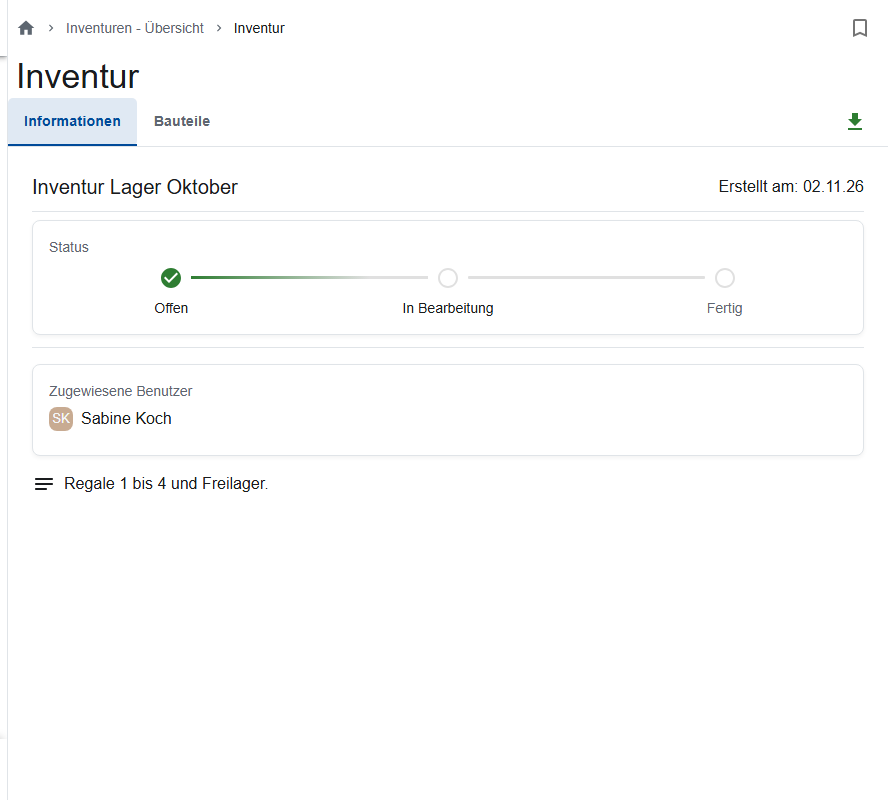
- Assigned employee: warehouse workers count every stocktake that's visible to the warehouse. Assign helpers here who don't usually work in the warehouse; they only see their own stocktakes.
- Save inventory.
- Open it and tap Unhide for the warehouse. Until then, the warehouse doesn't see it.
Counting (warehouse)
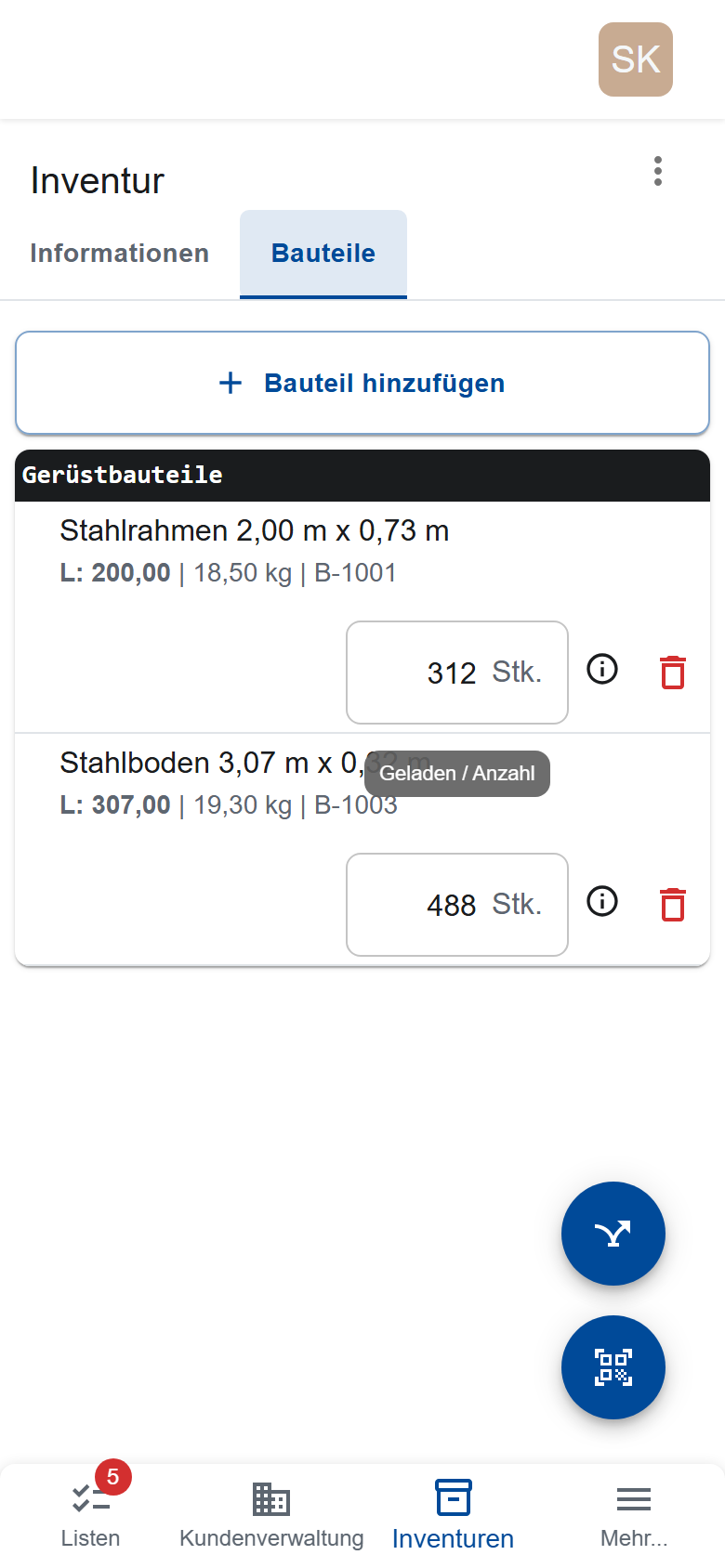
- Open the stocktake. On a phone or tablet, tap Start inventory (later Continue inventory): the app goes through the parts one by one. With Scan QR code, you jump to the part on a label. On a computer, you count directly in the parts list.
- Enter the Number of elements for each part.
- Tap Finish Inventory. After asking you, the app adds parts you didn't count with 0 pieces (Yes, add parts & finish inventory).
Applying it to the stock (office)
- Open the stocktake once it's Finished.
- Tap Apply inventory to stock.
Each part in the stocktake gets the counted quantity as its stock; parts that aren't in the stocktake keep their stock. After that, the stocktake is Applied: its parts can no longer be changed, and it can no longer be deleted. The History tab shows the old and new stock for each part.
If something has to be recounted, use Set back to 'In Progress' on the finished stocktake before applying it. With Download, you get the counted parts as a CSV file, for example for Excel.
Who counts, who books?
- Only the office can create, make visible, apply and delete a stocktake.
- Only the warehouse and assigned helpers can count and finish. The office can only read the counted parts.