Users and roles
Only admins manage users. Which role is right for what is explained in Roles: who sees what?.
Finding users
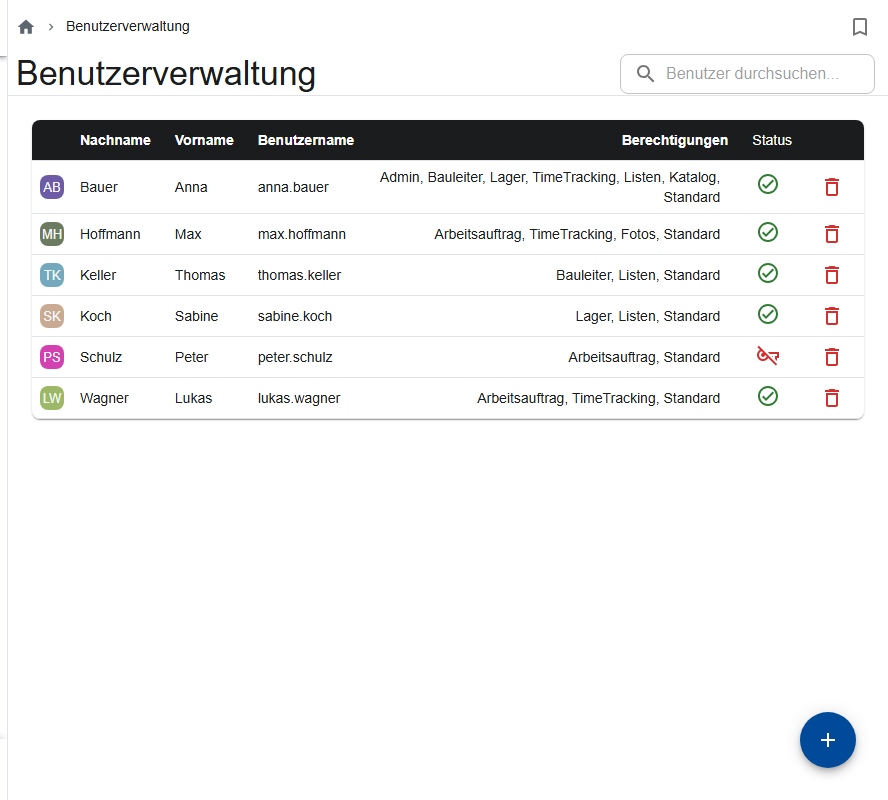
Under More… → User management, you find all users of your company with their roles. Locked users are marked.
Creating a user
- Tap Create user.... If the button is grayed out, you've reached your number of user licenses; locked users count, deleted ones don't.
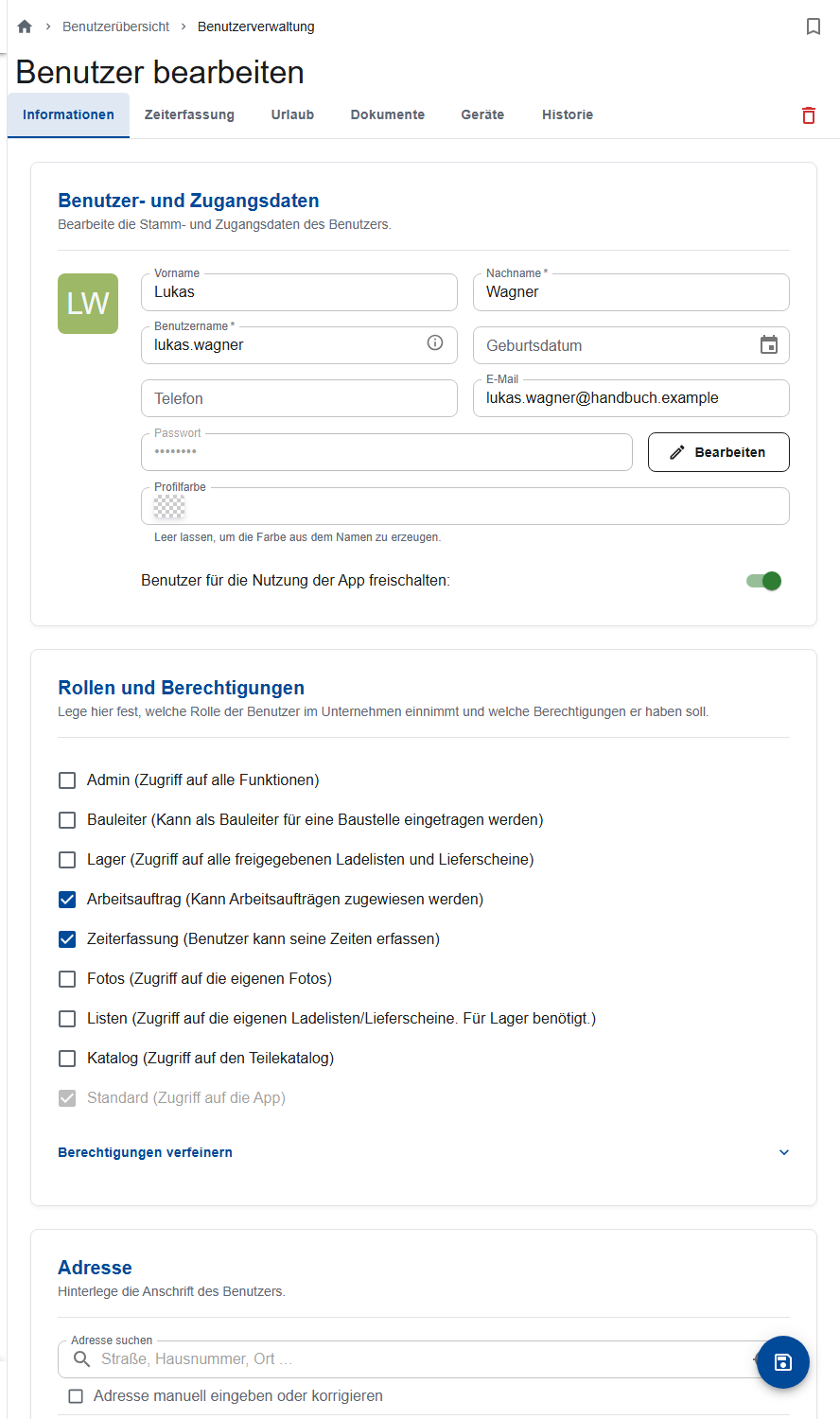
- Enter the Last name, optionally the first name, the Username and the Password (at least 6 characters), and optionally phone, email and profile color.
- Turn on Allow the user to use the app. Otherwise, the new user is locked and can't log in.
- Under Roles and permissions, check the roles. Standard is always set.
- Save. Give the employee the company ID, username and password. After that, they can change their password in their profile themselves.
Rules for the username
- Letters (including ä, ö, ü), digits, “.” and “-”; no ß, no spaces, no “_” and no “@”.
- It must not start with “admin”.
- Each username can only exist once; deleted users keep theirs, too.
Changing roles
Open the user and check or uncheck the roles. They take effect for the employee within about 15 minutes at the latest, or after they log in again. An admin, too, needs the role of each area (Roles).
Resetting a password
Open the employee, tap Edit next to the password and set a new one. It takes effect right away, without saving, and the employee is logged out on all devices.
Locking a user
When an employee leaves the company, turn off Allow the user to use the app. They can't log in from then on; what they recorded stays, with their name. Lock users rather than deleting them: a deleted user disappears from the app, but their username stays taken. You can neither delete nor change the user “admin”.
The History tab shows who changed the user's roles, rights or data, and when.
Specific to ScaffConnect
- The Site manager role requires an email address. Among other things, the copies of the release emails go to it.
- Birthday (optional): your colleagues then see the birthday in the app.
- Refine permissions (after the first save): give or take away single permissions for the internal orders without changing the roles (Single permissions).
- More tabs in the user:
- Time tracking and Vacation: working times and vacation entitlement (Settings per employee),
- Documents: personal documents the employee reads in their profile,
- Devices: where the employee is logged in. Log out single devices there.